

There is nothing more aggravating than a sluggish download, especially when you are in the middle of getting some key files or an update or just want to watch a show. Most people will jump to the conclusion that their internet is at fault, yet that isn’t necessarily the case. Often, your system settings, browser activity, or background apps are holding you back.
Fortunately, you don’t have to be a tech whiz to speed up slow download speeds on a PC. Some straightforward changes can really improve your day-to-day use.
This guide shows you some easy ways to speed things up. You will see how with the right optimization tools and a few simple habits, you can keep your downloads stable and efficient for a much better experience with your computer all around.
Why Download Speed Becomes Slow on PC
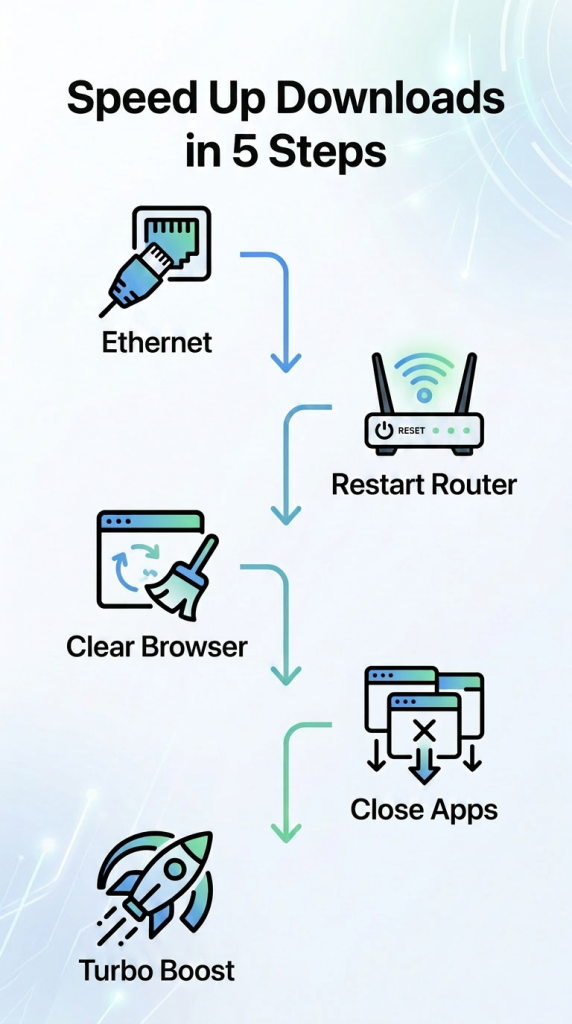
You can’t put a fix in place until you know what is really holding things back. If you look into ways to get more download speed out of your PC, you will see that it is rarely one thing at fault; usually it is a host of minor problems compounding on each other.
- Take background apps, for instance. They use up your bandwidth while you go about your business, and before you know it, cloud storage or a system update has left you with less speed to work with.
- Then there is the matter of Wi-Fi. A poor signal from being too far from the router or an obstruction will make for an unstable connection when you download. Out of date network drivers are another culprit, hampering the way your PC talks to the internet.
- Don’t overlook the browser either. Cramming too many tabs or running some bulky extensions will bog down the process and leave your downloads feeling sluggish. The bottom line is that you may have all the speed you need, but your system is not making efficient use of it.
Improve Internet Connection for Faster Downloads
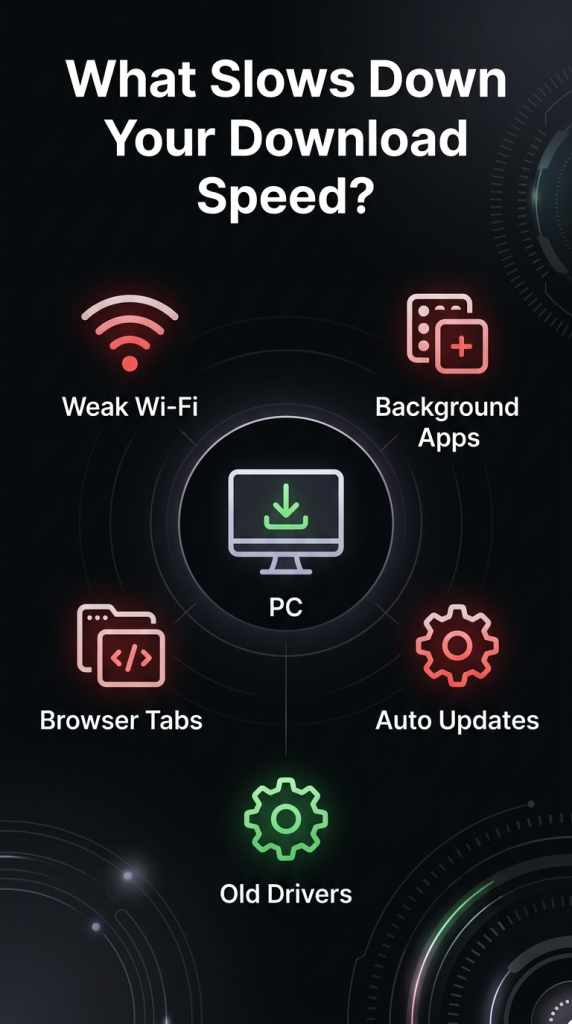
A reliable internet connection is the best way to maximize your PC’s performance. For that reason, you should choose a wired Ethernet link over Wi-Fi whenever possible; it is more reliable because it avoids the signal drops and interference you might otherwise encounter.
You will see a marked difference in consistency when putting large files on your hard drive.
Should an Ethernet cable not be an option, then where you put your router matters. Put it in a central spot with plenty of room and you will get better signal strength. And don’t overlook the simple fix of a restart to clear up any temporary hiccups in the network.
You can also make some headway by tweaking your DNS settings. It sounds like something for the technically inclined, but today’s systems let you change to a faster provider with a couple of clicks. The result is a quicker, more stable link to download servers for your PC.
None of this takes any fancy setup, yet these minor changes can do wonders for your computer’s speed while you are downloading.
Optimize Browser Settings for Better Performance
Most people don’t give their browser the credit it is due when it comes to download speed. The fact is, a browser will pick up all manner of cached data, cookies, and temp files as you go along, and that builds up to hamper performance.
Make it a habit to clear out this kind of data from time to time, and you will find your browser is more efficient and quicker to respond when downloading.
Then there are extensions. Plenty of them are running in the background and eating up system resources without you noticing. You will see an instant improvement in responsiveness if you do away with or turn off any you don’t need.
Lastly, don’t underestimate the impact of having too many tabs open either. Every open tab uses memory, so if you have a lot going on at once, your system has less memory available for an active download. Stick to the essential ones and you will have a smoother experience, which is good advice if you want to know how
Reduce Background Activity and Free System Resources
You will often find that the key driver behind sluggish downloads is some background activity going on quietly in your system. There are plenty of applications that keep working whether you are using them or not. Take cloud sync, for instance: it is always busy uploading and downloading files, and that puts a strain on the bandwidth you need for what you are actively trying to get.
Then there are the automatic updates for your system and apps. They are necessary, but they can hamper an active download when they kick in. You can pause those for a while if you are in the middle of something large, and it will be worth it.
Don’t overlook your startup programs either. If you let too many things fire off when you boot up the computer, they sit in the background eating up memory and dragging performance down. Put some of those on sleep, and you will see better download times and a more responsive PC to boot.
Maintain System Health for Consistent Speed
For the sake of long-term performance, it is important to keep your system in optimal shape. You would be surprised how much outdated network drivers can affect things; they are one of the most neglected elements. Since these govern your PC’s communication with the internet, a lack of updates means your connection won’t run as well as it should.
Then there is the matter of storage health. A hard drive or SSD that is running out of room will cause the whole system to lag as it struggles for space to put down temporary files and processes. Routine housekeeping to remove unnecessary files will greatly help keep things running smoothly.
Don’t forget about system updates. They do more than just patch holes; modern ones bring better stability and security along with enhancements to how the network is handled. By staying current with them, you guarantee your computer stays fast and your downloads remain dependable.
Simple Optimization Tips That Make a Big Difference
You can do more than the usual fixes to improve download performance; some straightforward habits also help. Take a download manager, for instance: it will break up big files into smaller chunks, which, in turn, gives you a quicker and steadier download even if your connection is not the best.
Then there is the matter of timing, something most folks don’t give enough thought to. Since internet traffic tends to be at its heaviest in the evenings with everyone online, you are better off waiting for off-peak hours like early in the morning or late at night to put in a large file.
In addition to these issues, you also need to oversee the rest of your network activity. If you have several devices tied to it and drawing on the bandwidth, your PC has less speed to go around. For a big download, unplug any you are not using, and you will see an improvement.
TurboCharger App: Smart Way to Boost Download Performance
With the TurboCharger App, you can get better performance in a more straightforward fashion, all without having to tinker with manual system adjustments. You don’t need to manage your settings or background processes one by one; the app will handle optimization for you.
What it does is zero in on any superfluous load on the system and cut it back, giving precedence to what you are actively doing, such as a download. The result is a more efficient use of resources for smoother operation and quicker file transfers.
If you are looking for a convenient way to put some speed into your PC downloads without being tied to constant setting changes, this is the kind of tool for you. It is particularly handy for those who regularly put their system through its paces with large files or updates, as it keeps performance steady.
Everyday Habits to Keep Download Speed Fast
You can’t underestimate how important consistency is for keeping your performance up. For instance, a regular PC restart will do you some good by putting an end to any background processes and temporary system load that might be holding back your downloads.
Then there is the matter of timing; if you do your downloading in off-peak hours, you sidestep network congestion for better stability. And it is wise to put off any heavy gaming or streaming until later so as not to compete for bandwidth with what you are actively working on.
These habits are simple enough, but if you do them regularly, you will see the difference. It all reinforces what you’ve learned about getting more speed from your PC.
Final Thoughts
You won’t see better download speeds from a single sweeping change; it is the sum of several minor optimizations that make the difference. Do some housekeeping on your browser, put the brakes on background processes, and give your network and system the attention they need, and you will find a more stable, quicker environment for your work.
These are the kind of adjustments that pay off in the long run. They don’t just put more speed into your PC downloads; they leave the whole system feeling more efficient and responsive. Of course, if you prefer not to do it manually, TurboCharger can handle the optimization for you: TurboCharger will take care of the optimization for you behind the scenes.
But really, it comes down to being consistent. When your habits and your system are in tune with performance, getting a fast download is no longer an ordeal but simply how things are.
Want to experience a seamless downloading experience?