
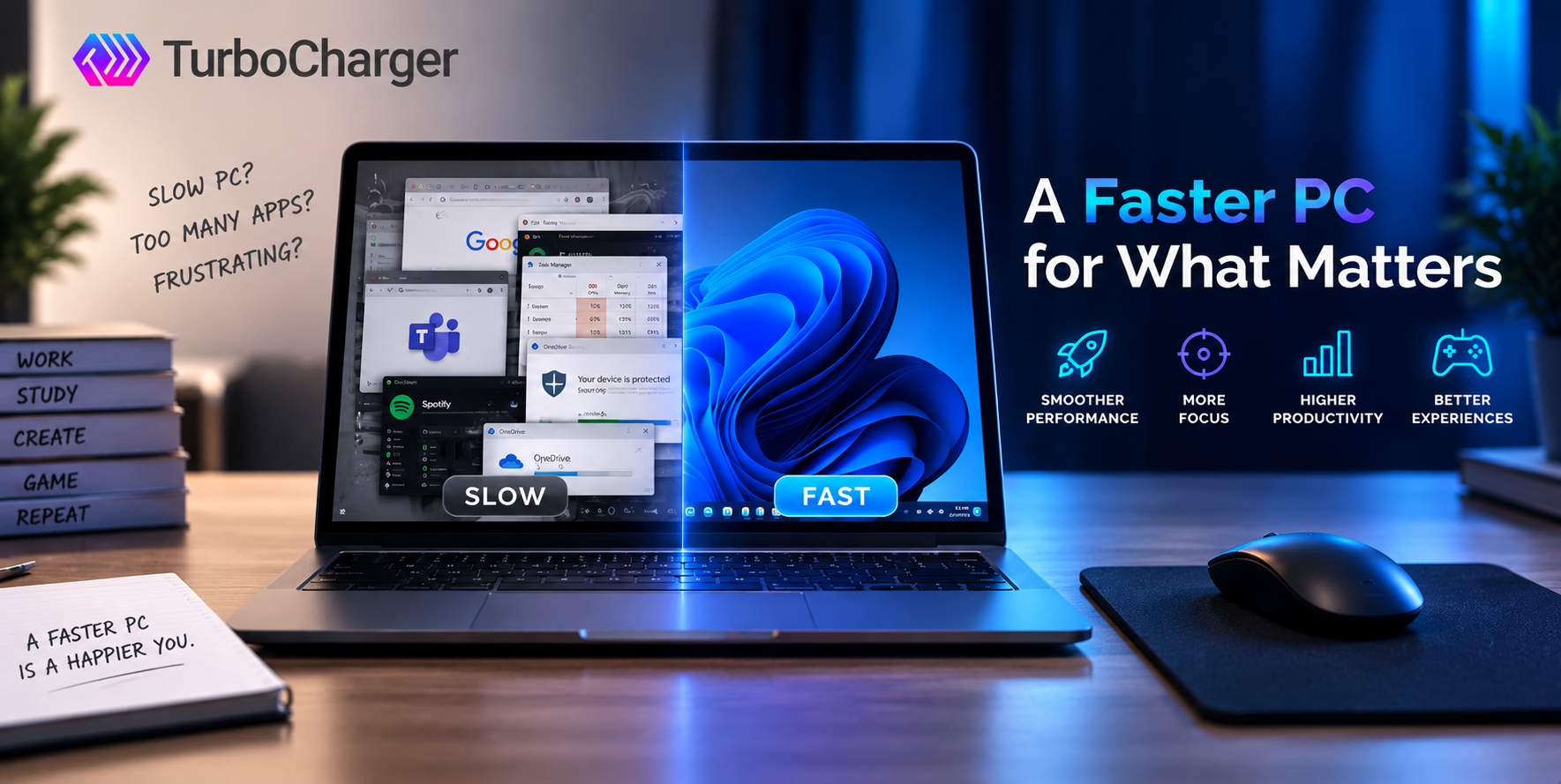
There was a time when your computer would have an app up and running in seconds. These days, it is more likely to stall and stutter, testing your patience. While most people put that down to old age, in truth, age is seldom the real culprit. What you are really up against is performance being siphoned off by background clutter, bad resource allocation, and startup programs you may have long since forgotten. The good news is that there is a way to put most of that right.
This guide answers the question of how to speed up my computer with fifteen fixes you can apply right now. The following steps are the result of our own hands-on work with Windows and the kind of advice you will find from Microsoft’s support staff. You might spend ten minutes on one thing and only ten seconds on another, but you will notice the change in performance right away.
Why Your PC Feels Slower Every Month
All the programs you have running in Windows draw from a common pool of disk access, memory, and CPU cycles. The scheduler is responsible for parcelling out those resources, breaking CPU time down into brief intervals to give every thread its due. In most cases, Windows assigns user applications Normal priority by default, an eight on a 31-point scale.
Under that arrangement, your video editor is treated the same as some unobtrusive background updater. With dozens of other threads vying for attention, the app in the foreground must wait its turn.
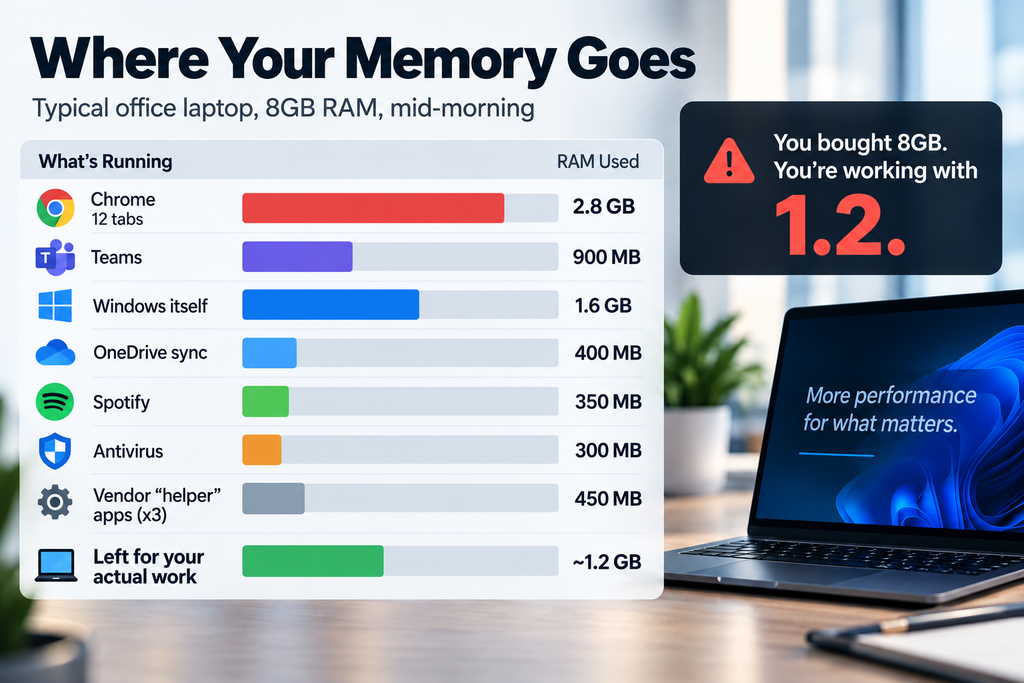
The result is the kind of lag and stutter one notices on a slow launch. Then there is the matter of memory pressure. When physical RAM is at capacity, Windows will page any inactive data off to the disk; since a disk read can’t keep pace with RAM, the slowdown is all but inevitable. Therefore, the fastest path to improve computer speed combines two moves. First, remove waste. Second, direct the remaining resources toward the apps you use most.
Find Your Real Bottleneck First
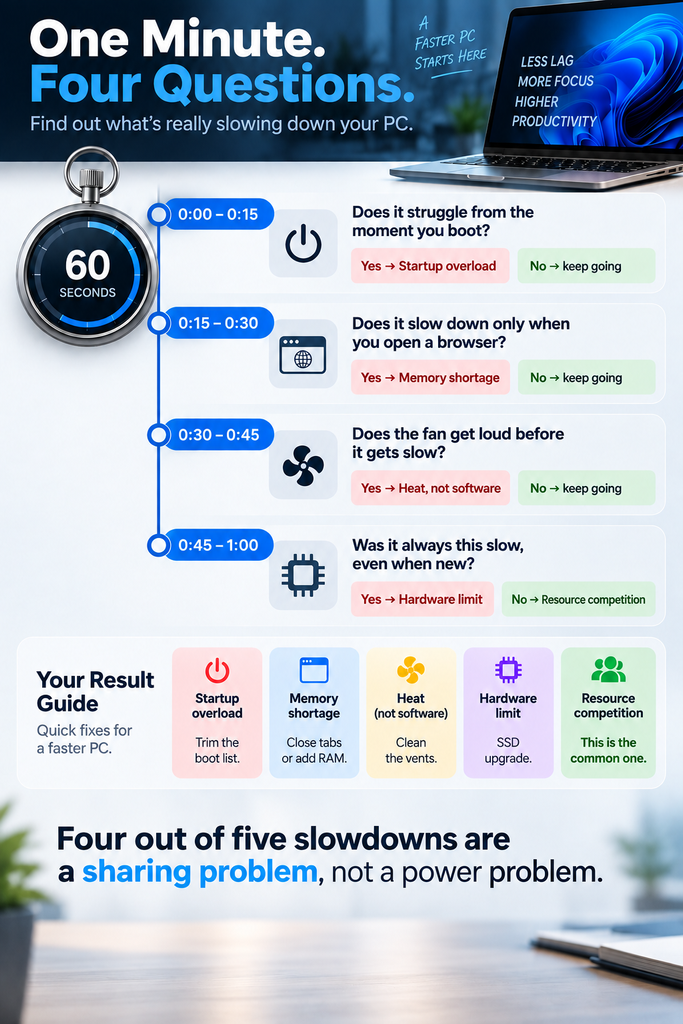
There is no point in guessing; it is a poor use of time. Spend two minutes doing some proper diagnosis. Start by opening Task Manager and going to the Performance tab.
Continue working as you normally would and monitor four metrics. A CPU running over 80% is a sign of a weak processor or too many background processes. If memory tops 85%, either put in more RAM or close a few applications. You will also see what GPU spikes are like for any rendering or gaming. And if disk active time is near 100%, the mechanical drive is probably failing.
For a closer look, run a couple of other checks. In Resource Monitor, sort by Disk queue length; anything over two indicates clear storage contention. Then fire up Event Viewer and put a filter on Kernel-Power and Disk warnings to catch any hardware that is starting to fail. The results from those will make it clear which fixes to prioritize. Anyone researching how to speed up my computer should start here, because it prevents wasted effort.
Finally, check temperatures with a free monitor such as HWiNFO. Sustained CPU heat above 90 degrees Celsius triggers thermal throttling, and no software tweak fixes that. Clean your fans instead.
How to Speed Up My Computer: 15 Fixes That Work Right Now
1. Restart Instead of Sleeping
Put the system to sleep, and it will hold your session, memory leaks and all, along with any unresponsive handles. A restart is what you need to clear the standby memory list, reset services, and flush the RAM. Then again, one should be aware that with Windows Fast Startup a Shut Down does little more than hibernate the kernel; for an actual reset, opt for a Restart.
2. Close Background Apps You Forgot About
To handle things, hit Ctrl + Shift + Esc and put the Processes in order of CPU and memory. You should focus on the working set column for active RAM use instead of the totals. Close any unused applications running over 300 MB.
3. Trim Your Startup List
Then there is the matter of the Task Manager. Go to Startup apps and rank them by their impact; from there you can do away with vendor utilities, sync tools, and chat clients. You should also review the Task Scheduler, as some updaters prefer to hide there. You will find that boot times can be cut by twenty seconds or more without any trouble.
4. Prioritize the Apps That Matter Most
With Task Manager, one can set a process to High or Above Normal priority from the Details tab, but as soon as the application is shut down, Windows will have none of it, and the setting is lost. There are IFEO tweaks in the registry that will hold, but they are not without their risks. For a safer, more hands-off way to manage prioritization, a good number of users turn to the TurboCharger App.
5. Switch to a High-Performance Power Plan
When the system is under little strain, balanced mode will put CPU cores to rest and dial back the clock speed. For a change of pace, go to Power Options and make your selection for High Performance. Those on a desktop can do even better with Ultimate Performance; an elevated PowerShell window with the command powercfg -duplicatescheme e9a42b02-d5df-448d-aa00-03f14749eb61 will open that up.
6. Free Up Disk Space
Then there are the SSDs, which require some spare blocks to handle garbage collection and wear leveling. Write speeds will drop if the drive is full. To remedy this, head over to Settings and into Storage, then Temporary files. Make a point of removing old Windows installations along with any delivery optimization data or downloads. 15% free space should be the minimum one leaves on the drive.
7. Turn Off Visual Effects
There is a cost to the GPU for every bit of animation, shadow, or acrylic blur, and it shows up as input lag. To fix this, go to the Windows appearance and performance settings and select “Adjust for best performance.” One exception: leave font smoothing on so text is legible. This is where integrated graphics will see the most advantage.
8. Update Windows and Your Drivers
Then there are the drivers. An old chipset or storage driver can be quietly throttling your throughput. Start with a Windows Update and put the latest GPU software on from Nvidia, AMD, or Intel. Make sure you have the right AHCI or NVMe driver for the drive in question as well; a generic one will only limit queue depth.
9. Tame Your Browser
With Chromium, every tab and extension is walled off in a separate process, meaning memory consumption will grow in direct proportion to the number of tabs. The remedy is to limit open tabs to under ten and do away with any extensions that are not needed. Put Memory Saver to work as well. One should also ensure that hardware acceleration is enabled so the GPU can take over rendering duties.
10. Scan for Malware and Strip Out Bloatware
Then there is the matter of adware, which has a habit of starting up at boot and masking itself under unassuming process names. A thorough scan with Microsoft Defender is in order, followed by an offline pass to root out anything persistent. Afterward, remove the manufacturer’s trialware and its background services; consumer laptops already have enough to deal with.
11. Use Efficiency Mode on Background Processes
To put a background process in Efficiency mode, right-click on it and make your selection. Windows will relegate it to Low priority and put EcoQoS in place, parking the process on an efficiency core if one is at hand. This is fine for helper services and updaters, but do not use it on system processes or any application you have open.
12. Optimize Your Drive
As for your drives, type “Defragment and Optimize Drives” into the search bar and hit Optimize. The tool defragments mechanical hard drives and issues a TRIM command to SSDs, making deleted blocks available again. You will find that this process restores some of the write speed on a drive that has been running slowly for a few months.
13. Uninstall Programs You Never Open
Go to Settings and into the Apps section to find your list of installed applications. Sort by size and installation date, then uninstall any you haven’t used in three months. The act of uninstalling will also take care of associated drivers, services, and scheduled tasks, lightening the load on the background.
14. Check Your Virtual Memory Settings
For the most part, Windows is quite capable of sizing the page file on its own. But make sure it’s on your fastest drive; if you have an SSD, don’t use a mechanical disk. Do not be tempted to turn it off altogether, as certain programs will put down memory they have no intention of using.
15. Upgrade the Hardware Bottleneck
There is only so much one can do with software tuning. A SATA SSD will give you about 550 MB a second, NVMe technology several thousand times over, while a mechanical drive struggles to reach 120. If you are a heavy multitasker, upgrading from 8 GB to 16 GB of RAM is worthwhile, particularly with dual-channel sticks rather than a single module of greater capacity.
Where the Turbo Charger App Changes the Equation
Then there are fourteen fixes that end waste; only one concerns how Windows makes what is left over available. It is a distinction worth making since it is the scheduling that determines the lag you will be aware of.
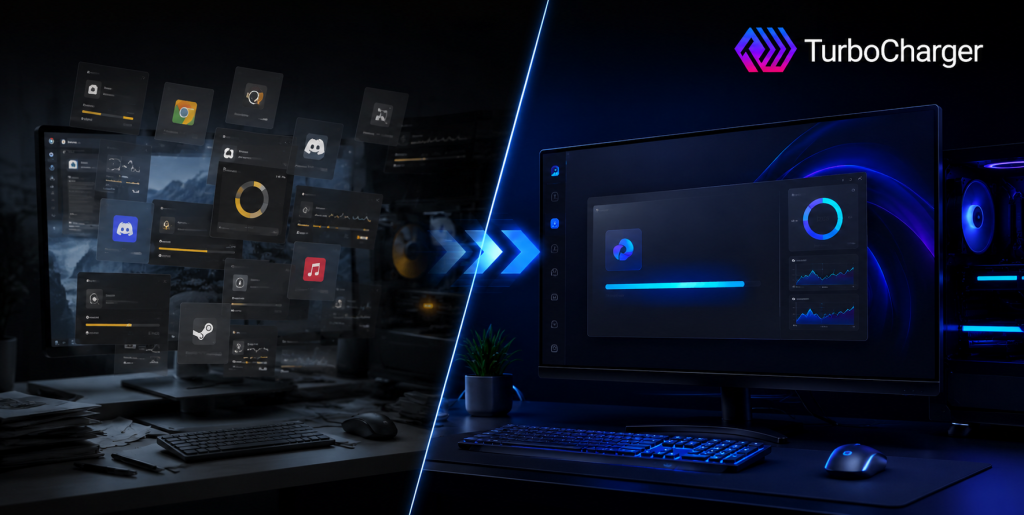
TurboCharger is there to help where Windows is lacking. By way of monitoring your habits, it will give the CPU and memory priority to the applications you rely on. A game or your compiler and editor get first dibs on resources, and background updaters have to yield. And because these settings persist even after a restart, they don’t require the kind of manual adjustments you might make in the Task Manager.
At the same time, the option for manual control is always at hand. If a project requires it, assign the priority, and TurboCharger will take care of it. The whole thing is straightforward enough to change profiles in a matter of seconds.
We see programmers using it to shield their debuggers and compilers during a long build or video editors looking to trim down render queues. Gamers use it to eliminate the frame time spikes from other tasks running in the background, and IT managers use it to put some protection around mission-critical software on their fleet.
TurboCharger, available for Windows, lets you put it through its paces with a free trial for the first two weeks at no cost.
If you have wondered how do i speed up my computer without buying new hardware, start here.
Build a Simple Maintenance Habit
Most people ask how to speed up my computer once, then stop. All that speed goes to waste if you skip maintenance, so make the fundamentals part of your schedule. Make a habit of a weekly restart. Once a month, review your startup apps and remove any temporary files. A thorough malware scan should be done every quarter. And twice a year it is worth using CrystalDiskInfo to assess the health of the SSD; have a look at the wear indicator and the reallocated sector count.
In less than fifteen minutes a month, you can complete this routine and safeguard your performance. It is well worth the time.
Frequently Asked Questions
- Why did my computer suddenly get slow this week?
Start by looking at what has changed of late. An abrupt loss of speed often results from a Windows update, a new application, or some browser extension. Put the Task Manager to work and see if there is any odd CPU activity; you might also want to run Reliability Monitor to check for crashes on that day.
- Do PC cleaner tools work?
There is value in a bit of housekeeping to free up disk space. But do not bother with registry cleaners; they are liable to mangle app entries and will not show you much in the way of results. Windows provides Storage Sense, Defender, and Optimize Drives, so use those.
- How much RAM do I really need?
As for memory, 8 GB is enough for the casual user, but a multitasker or gamer would be better off with 16 GB. Those editing 4K videos ought to think about 32 GB. A good way to tell if one is short on RAM is to look at the committed memory in Task Manager; if it is higher
- Will changing app priority damage my system?
That is not the case; priority serves merely to put a new order on processor access. One should steer clear of Realtime priority, as it has a way of starving the audio and input threads. TurboCharger is better in that regard; its safe priority tiers preclude such an outcome.
- Is a slow computer always a software problem?
Then again, not always. A clogged fan or thermal throttling will give you the same telltale signs as a drive on the way out. Should a cleanup fail to make a difference, have a look at the SMART data on the drive and what the clock speeds are holding under load.
Final Thoughts
A sluggish PC rarely needs replacement. Far more often, it needs direction. You have now seen fifteen practical ways to fix speed up my computer style problems, from thirty-second tweaks to targeted hardware upgrades. Start with the free ones. Disable startup apps, close idle processes, switch your power plan, and clear disk space. Most people notice the difference within one restart.
You also need to tackle the more profound problem. While cleanup will free up resources, the Windows scheduler struggles to understand your priorities and will allocate them accordingly. TurboCharger provides the kind of intelligence that is otherwise absent, ensuring that your key applications receive precedence without any effort on your part. Often, that alone is enough for the most noticeable improvement in performance.
Knowing how to speed up my computer is one thing. Keeping it fast is another. Combine a short monthly routine with smart prioritization, and your machine stays responsive for years. Diagnose first, fix the real bottleneck, then let prioritization protect the result.