

There is no worse way to waste the day than with a sluggish machine that saps your concentration. You are left waiting for files to open or watching tabs lock up as you try to scroll, and games will stutter when they should not. The usual advice is to order a new PC, but that is often a false premise.
How to speed up computer performance usually depends on how your operating system schedules work across a limited pool of CPU cycles, memory, and disk bandwidth. When too many processes compete for the same resources, the scheduler has to make trade-offs, and those trade-offs show up as lag.
We have put together this guide to clarify why computers slow down and how Windows allocates resources to some applications over others. It also covers the technical side of things and shows you where a product such as TurboCharger comes in. For those with questions on how to get some speed back out of their system, we provide the answers here as well.
Why Computers Slow Down: The Technical Reasons
Every computer slows down eventually, and the causes are measurable, not mysterious. Understanding them is the first step to learning how to improve computer performance for the long haul.
CPU Scheduling and Process Priority
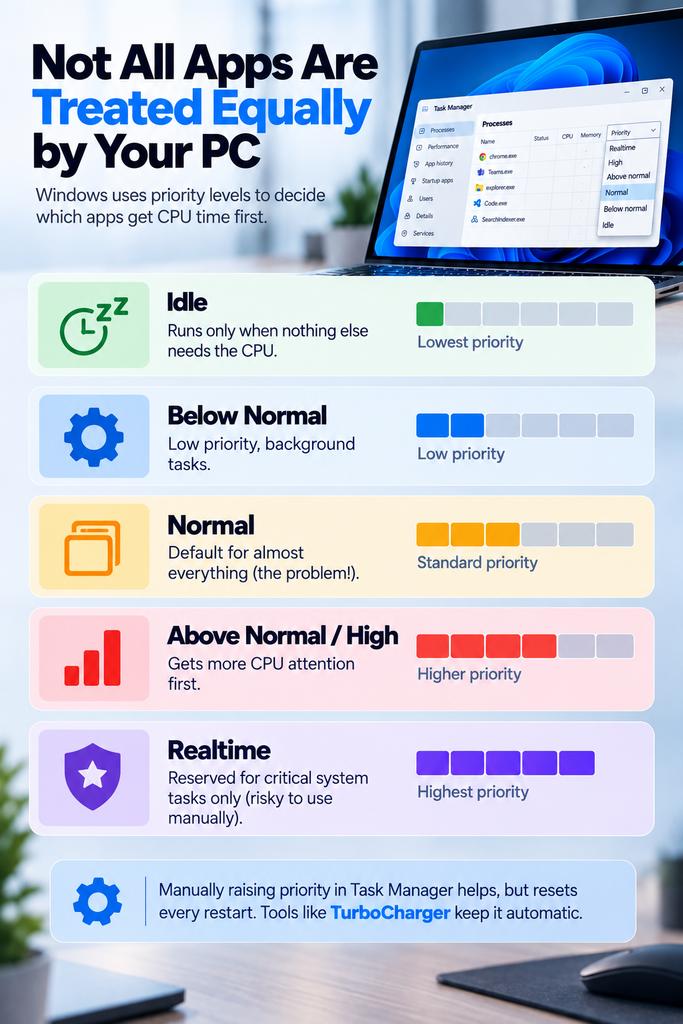
The scheduler in Windows is of the preemptive, priority-based variety. It will put every process into a priority class, be it Idle, Below Normal, Normal, Above Normal, High, or Realtime. In most cases, the default is Normal, so a background sync client and your video editor are treated equally, even though only one of them needs the CPU now. The way the scheduler works is to allot a time slice to a thread before moving on down the queue to the next. When there are a good number of processes all set to Normal priority, an active task can find itself waiting its turn more than is necessary.
RAM Paging and Virtual Memory Pressure
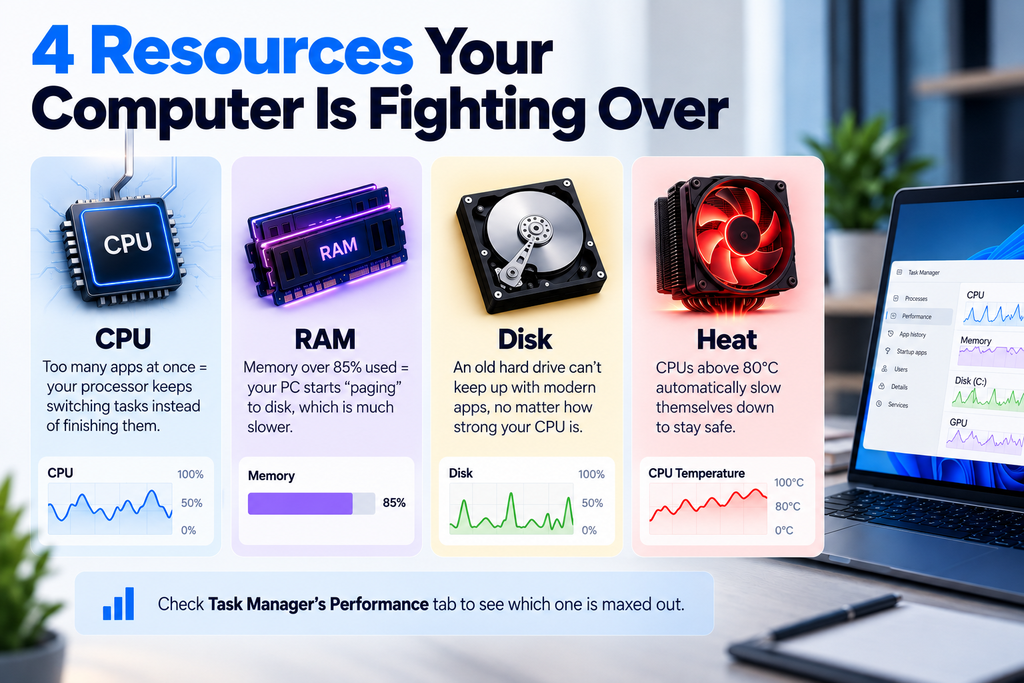
Given the limits of RAM, Windows will resort to virtual memory on the disk to make up for it. The system has a way of dealing with full physical memory by paging off data that is not in heavy use of a storage device, which is not as fast. Such paging is far slower than a direct read from RAM. One can tell if the system is doing this too much by an increase in stutter and lag when switching between applications; look at the Task Manager, and if memory is habitually over 85%, that is what you are seeing.
Disk I/O Bottlenecks
The speed of one’s storage dictates how quickly data saves and programs load. With a conventional HDD, the mechanical nature of its read and write operations puts a ceiling on throughput that an SSD or NVMe drive would have no trouble surpassing. One need only look to Task Manager to confirm this: should Disk usage be pegged at 100% in the course of everyday work, it is the drive acting as the bottleneck, not the CPU.
Thermal Throttling
A CPU put under a sustained load will produce heat. Should the internal temperature climb past a certain point for safety’s sake, say 80°C or more, the processor is programmed to dial back its clock speed as a form of self-preservation. The result is thermal throttling, which can significantly reduce performance during a lengthy compile or render job, regardless of the hardware’s capabilities in other respects.
How Process Priority Affects Real Performance
Since CPU scheduling is priority-based, adjusting priority manually is one of the most direct ways to influence performance without touching hardware.
Adjusting Priority in Task Manager
With Windows, one can manually assign process priority. The way to do it is to open the Task Manager and head over to the Details tab; from there a right-click on any process will bring up the option to “Set priority.” You might set a task to Above Normal or High, so the scheduler pays it more heed than your typical Normal-priority work. It works, but you must adjust each task manually, and the change is lost when you restart the application.
Automating Priority Assignment
Dedicated prioritization software solves this kind of manual constraint, and TurboCharger is a prime example. The program makes use of the very same priority-class system found in Task Manager, only it does so in an automatic and unrelenting fashion. There is no need to open Task Manager each time one runs a game or starts a compiler or render job; TurboCharger will track your active applications and adjust the scheduler automatically. At the same time, those who prefer a more hands-on approach can manually set fixed priorities for certain apps. This ensures that a nightly build or video export has the CPU resources it needs.
Where Prioritization Helps and Where It Doesn’t
Priority scheduling is not a universal fix, and understanding its limits matters as much as understanding its benefits.
What Priority Adjustments Can Fix
One can do well to reprioritize CPU-bound tasks, particularly where there is a contest for the same cores between several processes. Take a code compiler and a browser with thirty tabs up; they are vying for resources in much the same way. By giving the compiler a higher priority, one will not have it as frequently held up by background work of lesser importance.
What Priority Adjustments Cannot Fix
One will not remedy an I/O bottleneck with priority scheduling. A mechanical HDD will read files at the same speed, regardless of CPU priority, if the drive is the bottleneck. The same is true of paging; you cannot forestall it by reordering processes when physical RAM is in short supply. To get around such issues, a hardware upgrade is called for, be it an SSD or more memory.
Supporting Habits Backed by How Windows Actually Works
A few maintenance habits align directly with the technical causes described above.
Restart to Clear Accumulated Background Load
If users leave a system on without a proper restart, background processes will accumulate; in sleep mode, these processes are paused but not cleared. A full restart puts an end to that by resetting the process table and emptying the scheduler’s queue.
Reduce Startup Applications
Then there are the applications configured to start with the boot, which swell the ranks of Normal-priority vying for the CPU in those first few cycles. One can curtail such competition during the boot sequence by turning off any high-impact startup items from Task Manager.
Keep Drivers and Firmware Current
A software defect in the form of poor memory management can be put down to old drivers on a graphics card or storage controller; it will have the appearance of a slowdown but is no such thing. Keeping up with updates is the way to remedy that.
Monitor Resource Usage Directly
If one wants to know what is behind a system’s sluggishness instead of making conjectures, the Performance tab in Task Manager gives a live readout of the CPU, disk, and memory. From there it is easy to see if a resource has been pushed to its limit and decide if the answer is to add some RAM, get a better drive, or simply re-prioritize.
Frequently Asked Questions
1. Why is my computer suddenly slow?
When there is an unexplained lull in performance, the cause can generally be put down to a particular resource running hot. It may be a startup application of recent vintage making off with CPU cycles, or the strain on memory from having an excess of programs open, or perhaps an update that is yet to be applied and is at work in the background. One has only to look at the Performance tab in Task Manager to see what has been pushed to its limit.
2. What’s the difference between CPU priority and CPU affinity?
A process’s priority is what dictates the degree of attention it will have from the scheduler in comparison to the rest. As for affinity, that is a matter of which CPU cores a process can be made to run on. One would find that most routine performance problems are down to priority rather than affinity.
3. Does raising an app’s priority use more electricity or generate more heat?
Altering the priority does not put more work before the CPU; it merely reorders the scheduling of what is there. And since total power consumption is a function of the workload itself, the priority level has no bearing on it.
4. Can automatic prioritization tools like TurboCharger cause instability?
There is a risk of instability and of depriving the system of its more important processes when one puts a process at real-time priority by hand. For that very reason, automated tools will not make use of the Realtime tier, confining themselves to the Above Normal to High spectrum as a matter of course in day-to-day operation.
5. Will an SSD upgrade help more than adjusting process priority?
As for disk usage running up to 100% or so on a regular basis in Task Manager, the answer is yes. But do not expect priority scheduling to make up for a storage device that is underperforming; it is of no use there, being only a remedy for CPU contention.
Final Thoughts
How to speed up computer performance is ultimately a question of resource allocation: CPU scheduling, memory pressure, and disk throughput all interact to determine how responsive a system feels. With Task Manager, one can access the underlying data. In a CPU-bound case, you can change priorities manually, but they won’t persist after a restart and won’t help disk or memory bottlenecks.
Then there is the matter of automating the process, which TurboCharger does; it spares the user from doing it manually yet leaves Windows’ own mechanism intact. But first, no matter the method, make sure to find out which resource is constrained. From that point it will be clear if the solution calls for a change of priorities, an upgrade in RAM, or a swifter drive.