
When games are stuttering, your FPS go down, or your PC just feels laggy during demanding games, it’s easy to think your computer’s parts are too old. However, you don’t always need to buy new hardware to get your gaming PC to run faster. Most of the time, what’s slowing things down isn’t what your computer is, but how it’s set up.
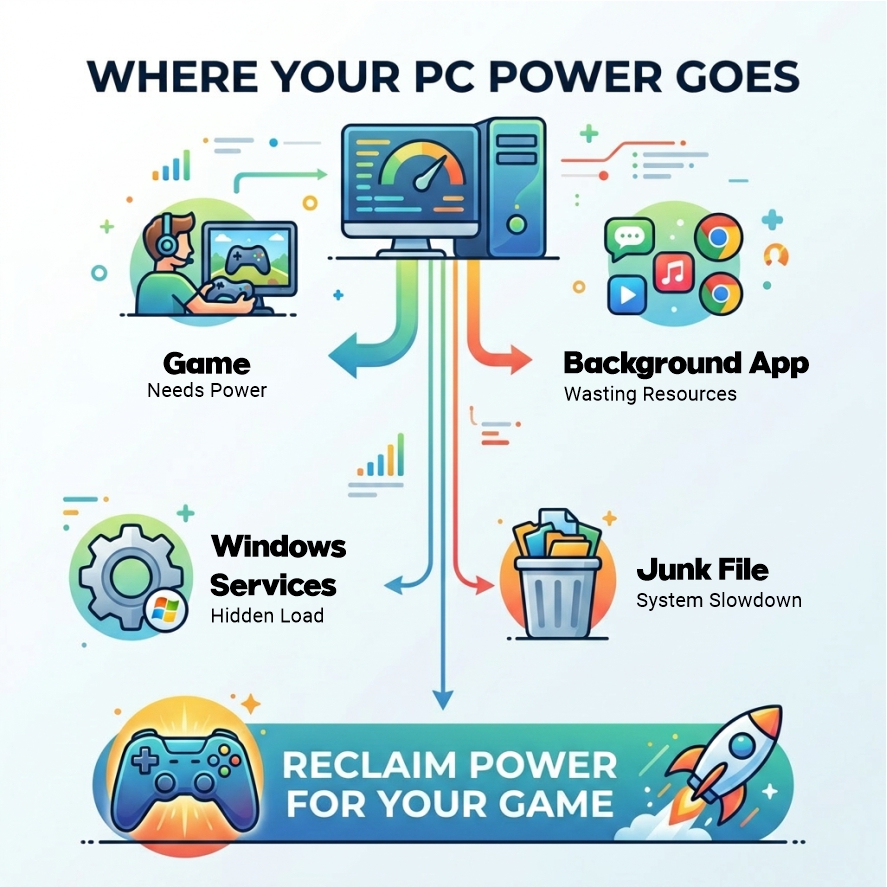
Lots of things can be holding your PC back, including programs running in the background using up power, Windows being configured in a way that isn’t best for speed, and a hard drive full of files.
Fortunately, you can speed up your computer, make it respond faster, and improve your games’ performance with some software improvements. You can get a much smoother experience with the correct strategies and tools, and you won’t have to spend any money on new parts.
Why Your Gaming PC Feels Slow
You really need to know why something is going wrong before you try to fix it.
For most people who play games and have problems with how the game runs, the problem is because of things like:
- Apps running in the background and using up your computer’s processing power and memory.
- Lots of unnecessary files on your drive can slow things down, or your computer might not be set to deliver the best performance.
Even an expensive computer can have trouble if you don’t keep these things in order. That’s why many people search for advice on speeding up their computer or making it run faster. Often, the problem isn’t the computer parts themselves, but how well the computer is set up.
1. Use Performance Boosting Software (The Smartest Solution)
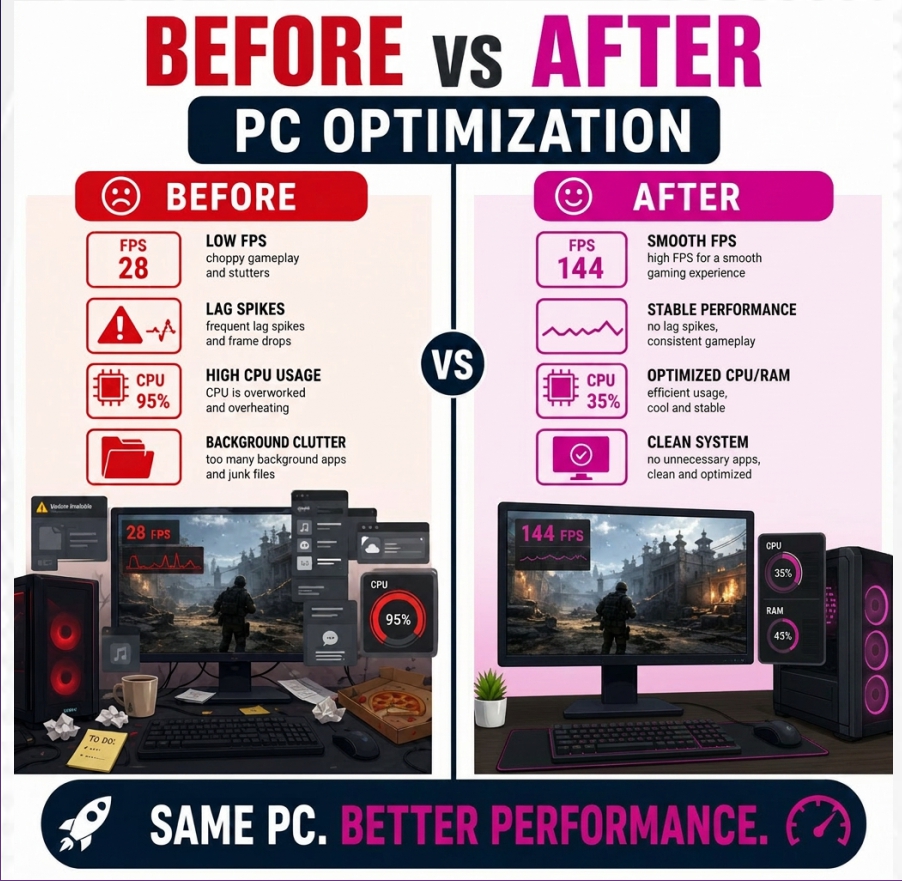
It can take a lot of time to improve your computer’s speed by changing things yourself, and if you aren’t sure what you’re doing, you could even cause problems. Modern software that speeds up performance is for this reason.
TurboCharger is a modern tool for improving how well your computer runs games and is for people who want to get a boost in speed without a lot of difficulty.
Instead of tweaking an array of settings manually, it allows you to:
- Automatically manage app priority for maximum gaming performance
- Reduce background CPU and RAM usage
- Optimize system behaviour based on real-time usage
Because of this, for people who play games, it’s one of the best game boosters you can get for a computer right now.
2. Clean Up Your System to Speed Up Computer Performance
As you use your computer, it gathers a lot of data it doesn’t need, and this accumulation eventually makes it slower. This unnecessary data includes things like:
- The system’s temporary files
- Your browser cache
- Files left over after Windows updates, or even items you’ve already thrown in the recycle bin.
All these uses up space on your drive, make programs open more slowly, and generally make your computer work less efficiently.
PC speed-enhancing tools make the process easier by automatically deleting these junk files, and with them you can get free space on your hard drive immediately, make your computer react more quickly, and cut down on delays while you’re gaming.
3. Optimize App Priority and Background Processes
When you start a game, your computer doesn’t immediately let it have everything it wants. Instead, it’s dividing its work between the game and many other things that are running in the background.
And that’s where setting an application’s priority is important.
If you tell your computer to prioritize the game, it will:
- Get more of the computer’s processing power
- Allow memory (RAM) function better
- Tell apps running in the background to be less demanding
TurboCharger does this for you by finding the best priority setting for the game, smartly controlling what’s running in the background, and guaranteeing the game has the resources for operation. All of this is really important for making a gaming computer faster and for getting a much smoother experience while playing.
4. Monitor Performance in Real-Time
When you don’t monitor what’s happening inside your computer, you’re essentially just guessing why it isn’t working properly. Keeping track of your computer’s performance in real time helps you identify CPU issues such as overload, excessive memory usage, sudden increases in hard drive activity, or network delays.
TurboCharger helps you track all these things. Because of this, you can find problems with how fast things are going immediately, figure out what is making your computer slow, and decide the best way to improve things.
And when you have a more thorough understanding of what’s going on, your computer will run better and ultimately be significantly faster.
5. Optimize Windows for Gaming
Windows doesn’t do an impressive job of being set up for gaming right out of the box. It’s running many things in the background while you play that you don’t need.
To get Windows to be better for gaming, you’d normally turn off programs and services you don’t need, use the power settings that give you the best speed, and lower things that just make Windows look pretty. But if you aren’t used to changing these types of settings yourself, you could easily cause problems.
TurboCharger does this for you by handling Windows programs during your games, changing the power plan depending on what you’re doing, and safely making changes to how the system works. Because of this, your computer will really concentrate on being as fast as possible during gaming.
6. Use a Game Booster for PC to Maximize FPS
Before you start a game on your computer, a good game booster gets your system ready. It does this by clearing out your RAM, halting programs you don’t need running in the background, and improving how your computer uses its components.
TurboCharger does more than most boosters; it uses artificial intelligence to optimize your system while you play. So, it isn’t just a boost; it’s a full package for improving frames per second on your PC, and it will change to work best for you.
7. Advanced Optimization for Power Users
If you like being specific, you can get better performance from your system with more advanced tweaking. Important ways to do this are by telling processes which parts of the CPU to use (CPU affinity management), controlling how quickly your computer reads from and writes to the disk, and reducing the amount of memory programs that aren’t doing much are using.
PC speed-optimizing software brings all of these complex improvements into a simple interface so you don’t have to set them up by hand. Because of this, you can adjust your system to run as well as possible, get the most from your hardware, and have a noticeably smoother and quicker frame rate in games.
8. Optimize Your PC for More Than Gaming
While gaming is the primary focus, optimization benefits extend beyond it.
You can also:
- Optimize PC for video editing
- Improve streaming performance
- Enhance multitasking efficiency
A well-optimized system performs better across all workloads, making TurboCharger a versatile gaming performance software and productivity tool.
Common Mistakes That Reduce Gaming PC Speed
Many users unintentionally hurt performance by doing the following:
- Installing unreliable “FPS booster” tools
- Running too many background apps
- Ignoring regular system cleanup
- Over-tweaking advanced settings manually
Not all PC speed optimization tools are safe or effective. Choosing a trusted solution like TurboCharger ensures you avoid these pitfalls while still being able to speed up your PC safely.
Why TurboCharger Is the Best Solution on the Market
Many tools claim to speed up your gaming computer, but a lot of them don’t really do much. Many are either overly simple, complicated for most people, or just don’t work.
TurboCharger is different because it brings together smart, automatic adjustments with strong, deep changes to how your system runs, all within a single, easy-to-use program.
- Instead of how you normally do things, this tool uses artificial intelligence to learn what your computer is doing and then by itself change the best performance settings.
- It takes care of things like deleting useless files, managing memory, and even controlling which parts of the CPU are used by which programs and how important each program is to the system. And it does all of these tasks without you needing to make a lot of choices.
- You can see exactly what’s going on with its dashboard, which updates in real time, and ‘smart profiles’ ensure your computer is optimally configured for gaming, normal work, or broadcasting.
So, this tool isn’t just something to give you a little boost when you’re gaming; it’s a full program for improving your gaming experience.
If you want to quickly, safely, and predictably speed up your computer, switch to Turbocharger.
Final Thoughts: Unlock Your PC’s Hidden Performance
You don’t always have to spend a lot of money on hardware add-ons to speed up your gaming PC. Often your computer is strong enough; it just needs to be set up to work well. Getting rid of files you don’t need, controlling what’s doing stuff in the background, changing Windows settings to be more efficient, and using the correct programs can really speed up your computer and make games run more smoothly.
If you maintain things regularly and carefully manage your computer’s resources, you’ll see a significant improvement in how it works and how reliably it works. Your system will simply give you better results for gaming, live streaming, or doing several things at once, if it’s optimized.
If you’re asking how to make your PC faster or get more speed from your computer without buying anything new, the answer is to optimize it more cleverly. A good speed-increasing software like TurboCharger can help you unlock currently unused performance and significantly improve your gaming experience, all without the need to purchase new equipment.
Still waiting? If you are a true gamer, you should not do that.