
You’d think with a strong processor, plenty of memory, and a speedy solid-state drive, your computer would run smoothly. But lots of people still find themselves dealing with freezes, things taking ages to respond, and a computer that crawls to start up. What’s with that?
The problem is generally not what’s inside the computer, but rather how the computer is being looked after. As you use it, all sorts of little inefficiencies in programs, things running in the background that you don’t need, and a lack of the best settings start to drag performance down. And as programs get updated and ask for more from your system, your computer will need regular adjustments to stay quick.
In other words, getting to grips with the software side of speed is important. This post will show you what’s genuinely making your computer feel sluggish and how programs that improve performance can get things humming smoothly again.
The Hidden Reasons Behind a Slow PC
Even if you have a top-notch PC, how well it runs depends on how smartly it handles all its programs and tasks. And as time goes on, if your computer is using over 80% of its ability, lots of little issues accumulating can really make it feel slow.
What’s often behind a computer that lags? Some of the big factors are:
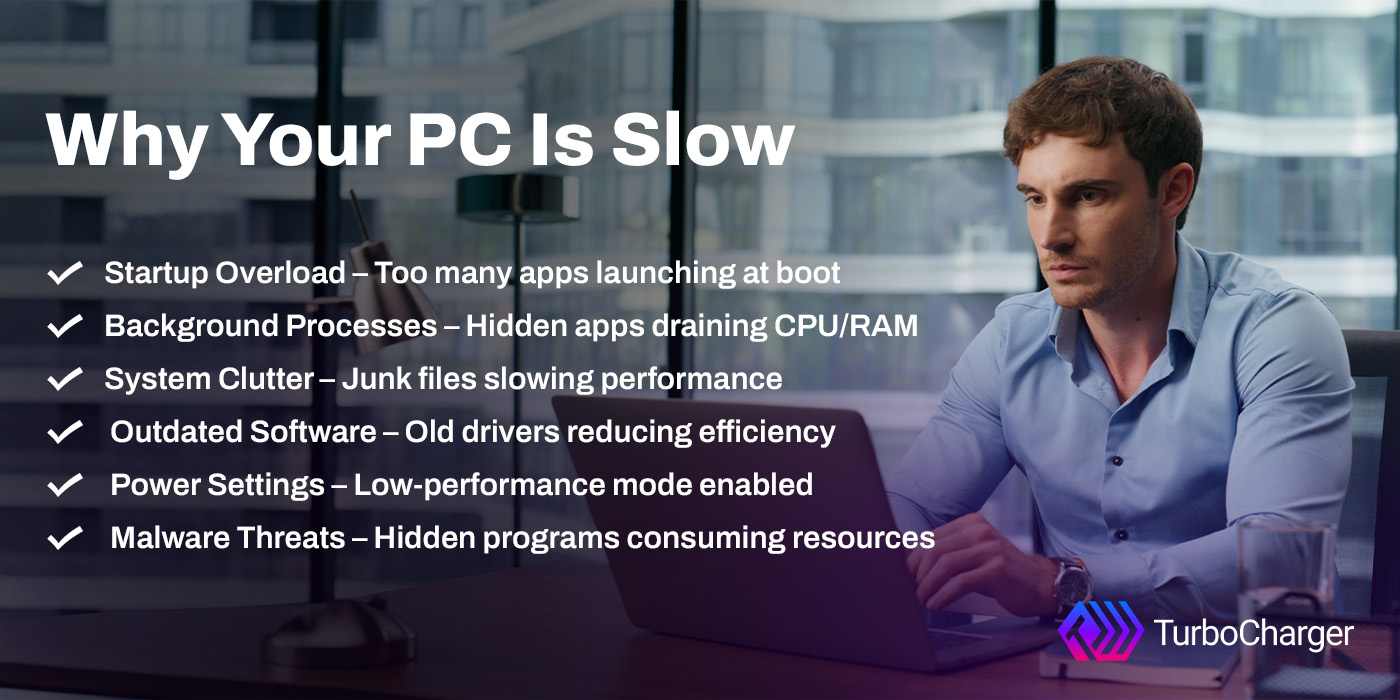
Startup Overload
Lots of programs may open by themselves in the background when you turn on your PC. Each one might seem important, but all of them together make your computer take ages to start and leave fewer of its abilities free for what you’re trying to do.
Before you’ve even chanced to do anything, these programs are already using up memory and the computer’s “brain” (its processing power), and that’s what makes it feel unresponsive.
Before addressing this issue, it is important to understand what typically runs at startup:
- Messaging apps
- Cloud storage services
- Update managers
- Media players
Background Process Drain
Many programs don’t really shut down when you close their window; they just keep going in the background. And while you don’t see them, they’re still using your computer’s power (CPU and RAM), which slows everything down. That’s why your computer might feel slow even with things like opening a document or browsing the internet, and why people are often asking how to get their PC to run faster!
Want to speed up your PC?
[Get a Free 14-Day Trial Today]
Resource Overconsumption
Every app you have open and doing things is grabbing a slice of your computer’s brain (the CPU), its short-term memory (RAM), and is making the hard drive work. When you have a ton of apps going simultaneously, your computer finds it hard to allocate all those parts out properly.
So, before you start fiddling with things, remember how opening lots of programs impacts how your computer runs: the CPU gets busier, you have less RAM left for what you’re doing, and everything just feels sluggish.
Hidden App Behavior
Many programs aren’t completely off when you close them; they are still working on things without you seeing it. You likely aren’t aware of this, but it noticeably makes your computer slower.
To make your computer faster, you should understand what these things are:
- Apps that open themselves again.
- Syncing that continues for a long time in the background.
- Services perform their functions even when you are not using them.
Compatibility Issues
If the little programs that make your computer’s parts work (the drivers) are old, your hardware just won’t do what it should. This can slow things down or stop your computer from working well at all.
It’s a good idea to know what happens when things inside your computer are past their prime, before you get them updated. Old graphics drivers mess with how things look, network drivers break your ability to get online, and system drivers generally stop your hardware from performing at its best.
Software Inefficiencies
Older applications may not be optimized for current operating systems. Consequently, they may consume more resources than necessary.
These issues can lead to:
- Slower application performance
- Increased system load
- Reduced overall efficiency
Storage Issues and System Clutter
A cluttered system can significantly reduce performance, even if your hardware is capable of much more. Temporary files, cache, and leftover data accumulate over time. Although each file is small on its own, their collective presence can significantly slow down your system.
Think about the kinds of files that accumulate before cleaning:
- Temporary system files
- Browser cache
- Installation leftovers
- Log files
Disk Performance Impact
Excessive clutter affects how quickly your system can access files. This leads to delays in opening applications and files.
Key performance issues include the following:
- Slower read/write speeds
- Increased load times
- Reduced system responsiveness
Poor Resource Allocation
Sometimes your computer doesn’t share its power and processing among all the things you’re doing in a very sensible way. As a result, some programs will feel slow, whilst others are using far more than their share of the computer’s energy.
It’s useful to know what’s often at the heart of this before you attempt to fix it:
- You might find the CPU isn’t being used equally.
- Your computer’s RAM is being overloaded, or programs running in the background are trying to be more important than what you’re actively using.
And if you’re also having trouble getting everything on your computer to run smoothly with the resources it has? Give TurboCharger a try for once.
Lack of System Tuning
Most computers aren’t working at their best because they’re still using the standard, out-of-the-box setup which isn’t really geared for speed. And fiddling with all those options yourself to get things running smoothly? It’s complicated. So, people will then look for ways to make their computer faster.
Malware and Security Threats
As for a sneaky slowdown of your computer, security problems are a big culprit, and you might not even realize anything is happening. Malware is a perfect example, quietly using your computer’s power to do bad things, which both makes it run slower and more likely to crash.
System Instability
Even minor threats can disrupt system operations, leading to inconsistent performance.
Before addressing security, consider the risks:
- Data breaches
- Application errors
- System crashes
Maintaining security is essential to improve computer speed and ensure reliability.
Inefficient Power Settings
How your computer is set to manage its power has a really big effect on how it runs, and this is especially true for laptops. The default settings prioritise battery conservation, limiting the computer’s capabilities. That’s beneficial for battery life, of course, but it holds the computer back.
But if you switch to ‘high performance’, you’ll let your computer be all it can be! You’ll find things are processed more quickly; it will feel much snappier when you use it, and it’ll be far better at doing lots of things at once.
Practical Tips to Speed Up Your Computer
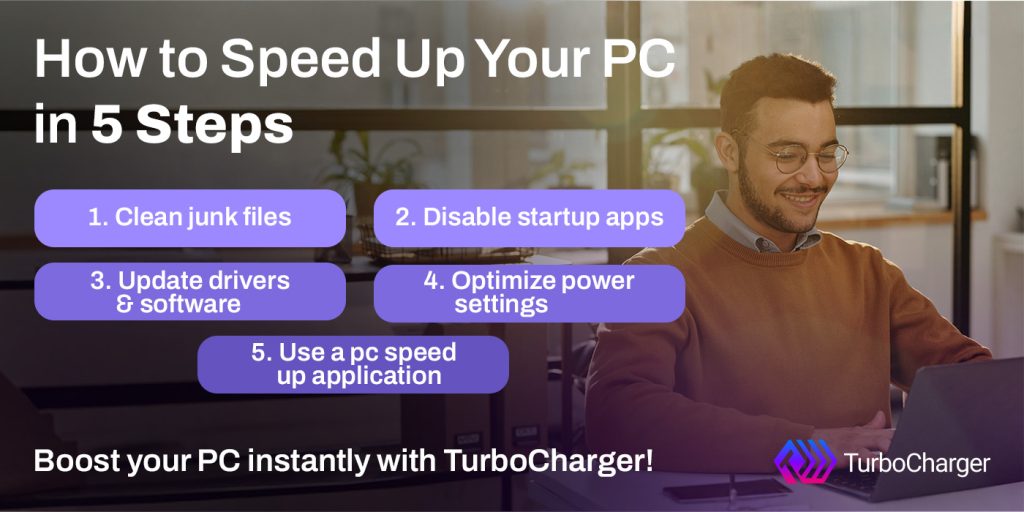
o really get the most out of your programs, you need to use them with sensible habits. With just a handful of easy routines and ways to improve things, you can keep your computer working at the same speed and not have it get slower as you use it.
Key Benefits of Smart Usage and Optimization
- Improved System Stability: Restarting your PC regularly helps clear temporary processes and keeps the system running smoothly.
- Better Resource Management: Limiting the number of open applications ensures efficient CPU and RAM usage.
- Enhanced Security and Performance: Keeping your system updated protects against vulnerabilities and improves functionality.
- Faster Startup Times: Managing startup apps reduces boot time and allows your PC to become usable more quickly.
- More Available Storage: Removing unused programs frees up space and reduces system clutter.
- Consistent Long-Term Performance: Using trusted tools, including performance-boosting software, helps automate optimization and maintain speed over time.
TurboCharger: Choosing the Right Solution
Having the right tool for a task is vital for getting good results. You have a lot of choices, so you’re best off choosing something that does what you expect of it and doesn’t disrupt your usual workflow. You’d like the tool you select to simplify improvements and give a real, quite clear improvement in speed.
Think about these things before you decide:
- User Interface: Easy to use, a clear, straightforward design that doesn’t need you to be a computer expert.
- Automation: Automatically do cleaning, updating, and improving.
- Security: Protect against viruses and dangerous operations.
- Compatibility: Run smoothly on all kinds of computer setups.
A trustworthy application like TurboCharger is built around these important points, helping people to make their computers faster without getting in the way. Improving your system isn’t a one-off thing. To keep your computer running efficiently, you’ll have to regularly check on it to do maintenance.
TurboCharger stands out by offering continuous optimization, automated resource prioritization, and dependable results. As a powerful performance boosting software, it not only resolves current slowdowns but also prevents future performance issues, ensuring your PC remains fast, stable, and efficient over the long run.
Final Thoughts
Your computer being sluggish doesn’t automatically mean the parts inside are too old or not good enough. Most of the time, what’s really happening is that your programs aren’t working as efficiently as they could, things are running in the background without you knowing, and you simply haven’t been keeping up with routine maintenance.
You can really get your system back to how it should be by finding out what these sneaky causes are. And, using your computer in a smart way, along with the correct software, will keep it running efficiently and steadily for a long time.
Programs designed to boost performance are key because they’ll do the tidying up and organizing for you, managing what your computer is doing and getting rid of junk. Be in charge of your computer now, and you’ll find it is smoother; you’ll get more done, and the improvement will continue. Use TurboCharger, the computer optimization helper you can depend on.
[Speed Up Your PC]