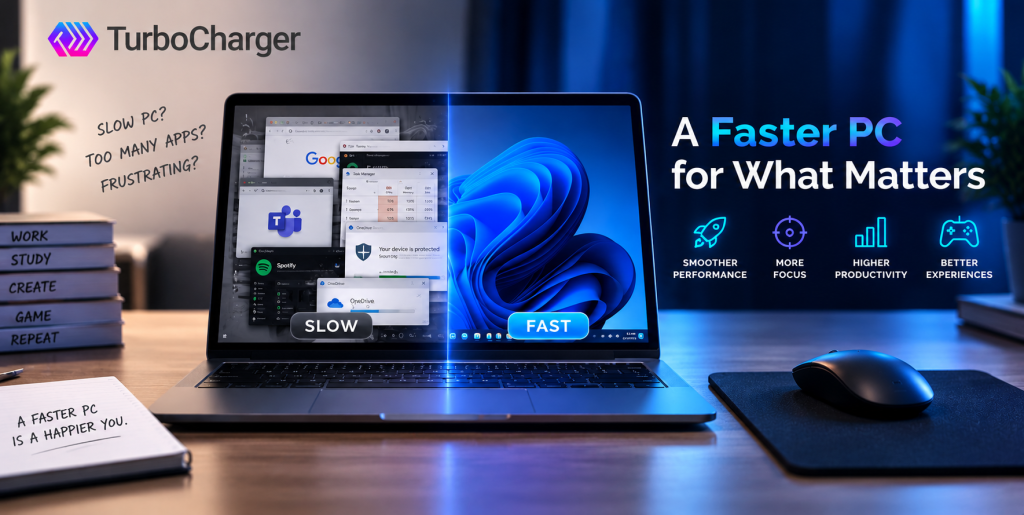

A computer that’s getting slow can subtly mess with all sorts of things, like your work each day, playing games, or watching videos without stopping and starting. Even powerful computers start to feel slow as time goes on because of how they are using their energy, apps running in the background, and just a lot of stuff building up in the system.
That’s why understanding how to speed up computer performance is more important than ever in 2026.
Luckily, getting your computer to be faster doesn’t need a lot of computer knowledge or expensive new parts anymore. These days, improving how fast your computer is about managing how it uses its energy, and particularly the CPU. Instead of closing programs or trying to work out which settings to change, programs such as TurboCharger give the most important things priority so your computer will run properly.
If you’ve been asking yourself how to get your computer to perform better without all the typical difficulty, then you are looking in the right place.
Why Computers Slow Down Over Time
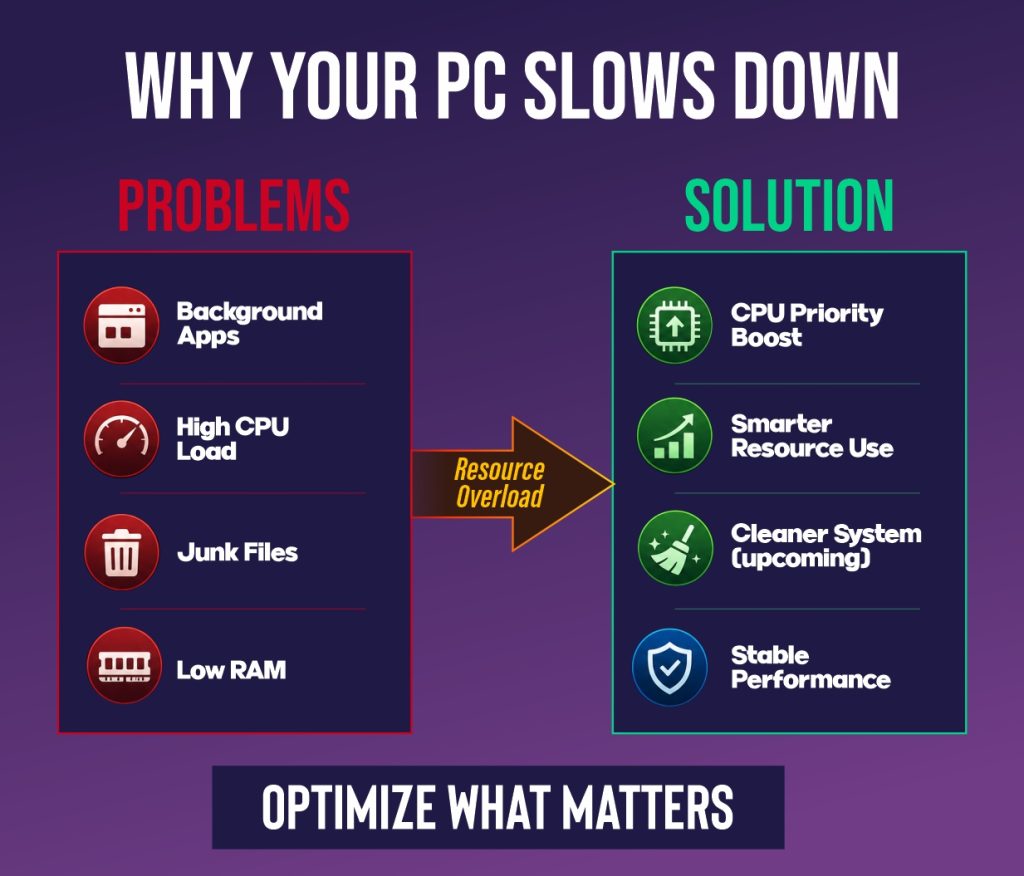
Understanding the problem is the first step toward fixing it. Most users searching for how to speed up my computer are dealing with a combination of common issues that build up gradually.
- Background Processes Overload
Many PC programs do things ‘behind the scenes’ even if you aren’t using them right at that moment. Because of this, they use up processing power and your computer’s memory, so you have less for the things you are doing.
- Startup Program Bloat
A lot of applications begin running as soon as you turn your computer on. As more do this, your computer takes longer to start and gets sluggish before you’ve even done anything.
- Accumulated Junk Files
Temporary files, old system’s hardware parts, and what your browser saves to work faster all use up room on your hard drive and can make your computer slower. Each of these may not be a big deal on its own, but all together they really drag things down.
- Poor Resource Allocation
Not all apps need to be running at full speed, but your computer might act as though they all do. If important programs aren’t given priority, they have to ‘fight’ for space with programs that aren’t as crucial and this makes everything less efficient.
Focus on What Matters: CPU Optimization
When it comes to improving your computer’s performance, the CPU plays a central role. Learning how to speed up computer performance starts with managing how your processor handles tasks.
Why CPU Priority Matters
Your computer’s brain (the CPU) is always jumping from one thing to another. When background programs all try to get the CPU’s attention at the same time, things get slower. Giving certain applications more importance (prioritizing them) means they’ll run more smoothly and quickly.
TurboCharger improves your CPU work by setting an app priority all the time. Rather than making you go into menus and change things, TurboCharger makes sure whatever you are using currently gets as much processing power as it needs.
Key Benefits of Prioritizing CPU usage:
- Reduces lag during heavy workloads
- Improves multitasking efficiency
- Enhances performance for gaming and streaming
- Minimizes background interference
This approach is far more effective than traditional methods that simply close apps or clear memory.
Smart System Cleanup
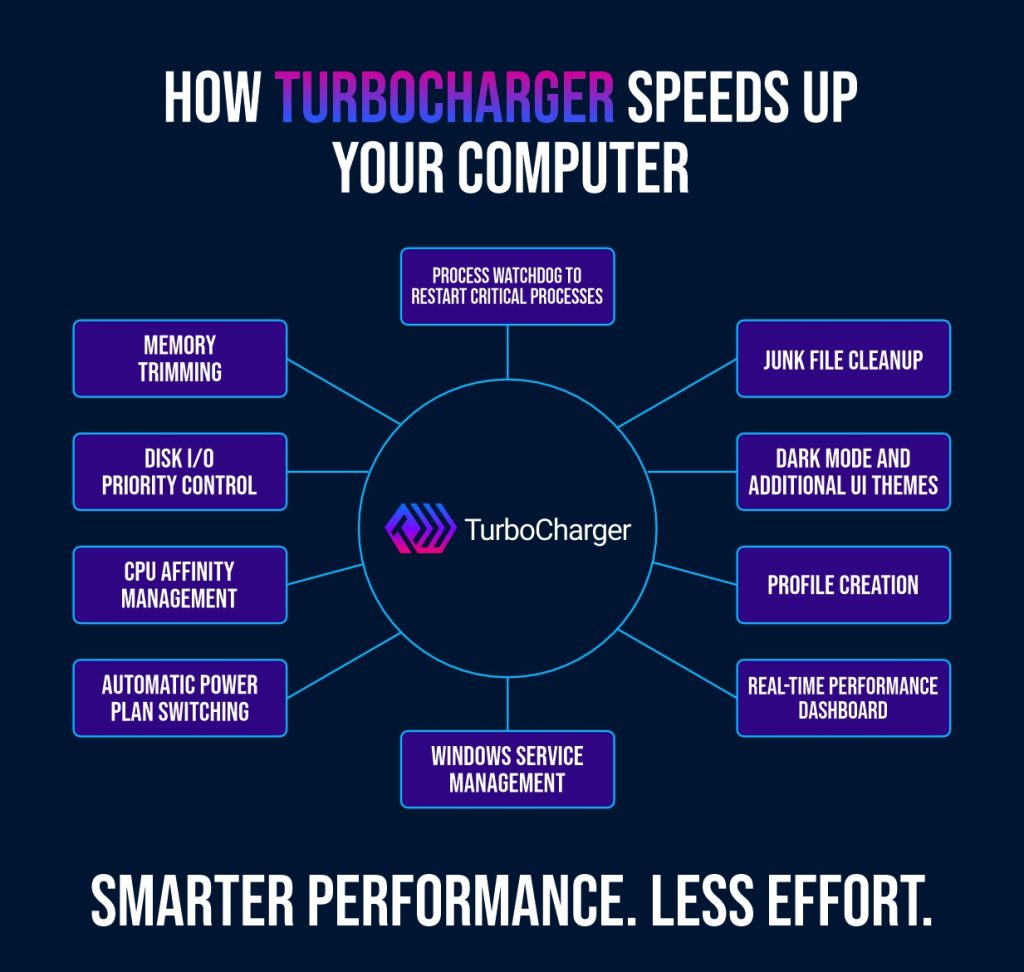
Getting the most out of your computer’s processor is critical, but a tidy system helps with speed too. TurboCharger is going to add automatic cleaning tools to make looking after your computer much easier. Following are the key functions TurboCharger will do:
- Removal of temporary files
- Browser cache cleanup
- Windows update file management
- Recycle bin clearing
Why it matters? Regularly cleaning up your computer means your drive space and what your computer is doing will work well. When you do that at the same time as improving your processor, you’ll have a PC that feels much more in sync and reacts quickly to what you ask of it.
Real-Time Performance Dashboard
Visibility is key when optimizing your system. TurboCharger gives a real-time performance dashboard to give users complete insight into their PC. What you’ll be able to monitor:
- CPU usage levels
- RAM consumption
- Disk activity
- Network performance
Why This Helps? Having access to real-time data allows you to identify bottlenecks quickly and understand how your system behaves under different workloads. It turns guesswork into informed decision-making.
Performance Profiles for Different Activities
Different activities require different system configurations. TurboCharger addresses this with customizable performance profiles, which includes:
- Gaming mode for high-performance needs
- Productivity mode for work efficiency
- Streaming mode for stable multitasking
Users will be able to create, import, and export profiles based on their specific needs. This makes it easier to speed up computer performance without adjusting settings manually each time
Advanced Resource Management Features
As your computer does more, it’s more important than ever to control how it uses its resources.
TurboCharger provides more sophisticated approach to boost performance without being difficult to use. The point of these tools is to get your computer to run better by giving first place to what’s important.
- CPU Affinity Management
With CPU Affinity Management, you can specify which processes the CPU should use. This means important applications will have their own processing power, and you’d get less pausing or slowing down, and the system will be much more responsive, particularly when you’re doing a lot at once with games or editing.
- Disk I/O Priority Control
TurboCharger’s Disk I/O Priority Control makes sure some applications can get to your storage more quickly. This lowers how long it takes to open things or start programs and means things will be smoother and will load faster.
- Memory Optimization
Memory optimization focuses on how apps that you aren’t using now often take up a lot of your computer’s RAM. This app reduces how much memory these don’t need, and this makes room for applications you are working with, allowing your system to do many tasks at once in a more efficient way.
- Windows Service Management
Not all the things running in the background on Windows (called services) are necessary all the time. TurboCharger will briefly stop unnecessary services during times when you want the best possible performance, letting your computer devote its resources to where they are most needed.
Stability and Reliability Improvements
Performance is not just about speed; it’s also about consistency. This app aims to improve system stability alongside performance.
- Process Watchdog: Automatically restarts critical applications if they crash, ensuring uninterrupted workflows.
- Activity Logging: Tracks resource usage over time, helping users understand performance trends and identify issues.
- Intelligent Monitoring: Keeps your system balanced by preventing overload and maintaining steady performance levels.
Automatic Power Plan Switching
Power settings play a bigger role in performance than many users realize. TurboCharger will introduce smart power management features. Key Capabilities includes:
- Switches power plans based on usage
- Balances performance and energy efficiency
- Optimizes system behaviour for different tasks
This ensures that your computer always operates at the right level of performance without manual adjustments.
Automatic Power Plan Switching
Something that is truly helpful should not be difficult to understand. TurboCharger is working on its look and feel to make getting the best results simpler.
Here are the changes to the screen layout coming up:
- A dark mode so things are easier to see
- Different themes to let you make it look how you want
- Dashboards that are much tidier and make more sense
Why is all this important? Well, if a program is easy to use, you’ll use it regularly, and that will improve how well things run over time.
Why TurboCharger Is Different
Many traditional tools rely on outdated techniques like aggressive file deletion or shutting down processes. TurboCharger takes a smarter approach.
- Focuses on CPU priority optimization
- Avoids unnecessary system disruptions
- Designed for modern workloads
- Continuously evolving with new features
This makes it a more reliable solution for users looking to speed up computer performance effectively.
Simple Habits to Boost Performance Further
Even with powerful tools, small habits can make a big difference.
- Limit startup applications
- Keep your operating system updated
- Restart your computer regularly
- Avoid running too many heavy programs at once
Conclusion
You don’t need to do complicated things or spend a lot of money to make your computer run faster. You can improve how well it works by managing what it’s doing cleverly, and you won’t have to work hard. Understanding how to speed up computer systems in 2026 means embracing tools that prioritize efficiency, automation, and ease of use.
TurboCharger App is special because it concentrates on the thing that really changes speed, how much importance the computer gives to the CPU, but it’s becoming a complete PC tune-up tool.
It is also offering AI features to make automatic changes, monitor how things are going as they happen, and give you very detailed control over all your resources. This means it’s designed to be a modern way of getting the most out of your computer.
If you’ve wanted an easy and dependable way to boost your computer without loads of confusing stuff, TurboCharger is an excellent possibility.