
When your computer lags, getting things done feels frustrating, you get less accomplished, and even simple tasks on the computer can become a real pain. Over time, computers fill up with background activities, temporary stuff, and programs you don’t even use anymore, all of which slows everything down.
Luckily, you don’t always have to spend a lot of money on new parts to get it working faster. Good habits and helpful programs can bring back the speed and make your computer respond to you again. One good fix is using software designed to speed up performance. This software manages your computer’s resources more effectively than you can by hand.
From deleting files, you don’t need to deciding which programs start up automatically with your computer, little adjustments can make a surprising difference. And now, programs like TurboCharger are making it much simpler to automatically look after how well your computer is running.
1. Use Performance Boosting Software for Smarter Optimization
If your computer runs slowly, one of the surest fixes is to get a program designed to speed things up. Instead of fiddling with all the technical details of how your computer works, you can rely on these programs to cleverly decide what needs to be done first and allocate the computer’s power more effectively.
TurboCharger is a great example of such software: it specifically makes the computer give your currently used programs more of the CPU’s attention, so they’ll run with a lot less pausing and stuttering. The result is a computer that’s all-round steadier, and crucially, for those of us who aren’t comfortable with the inner workings of a computer, it gives you a boost without needing any complicated settings to be changed.
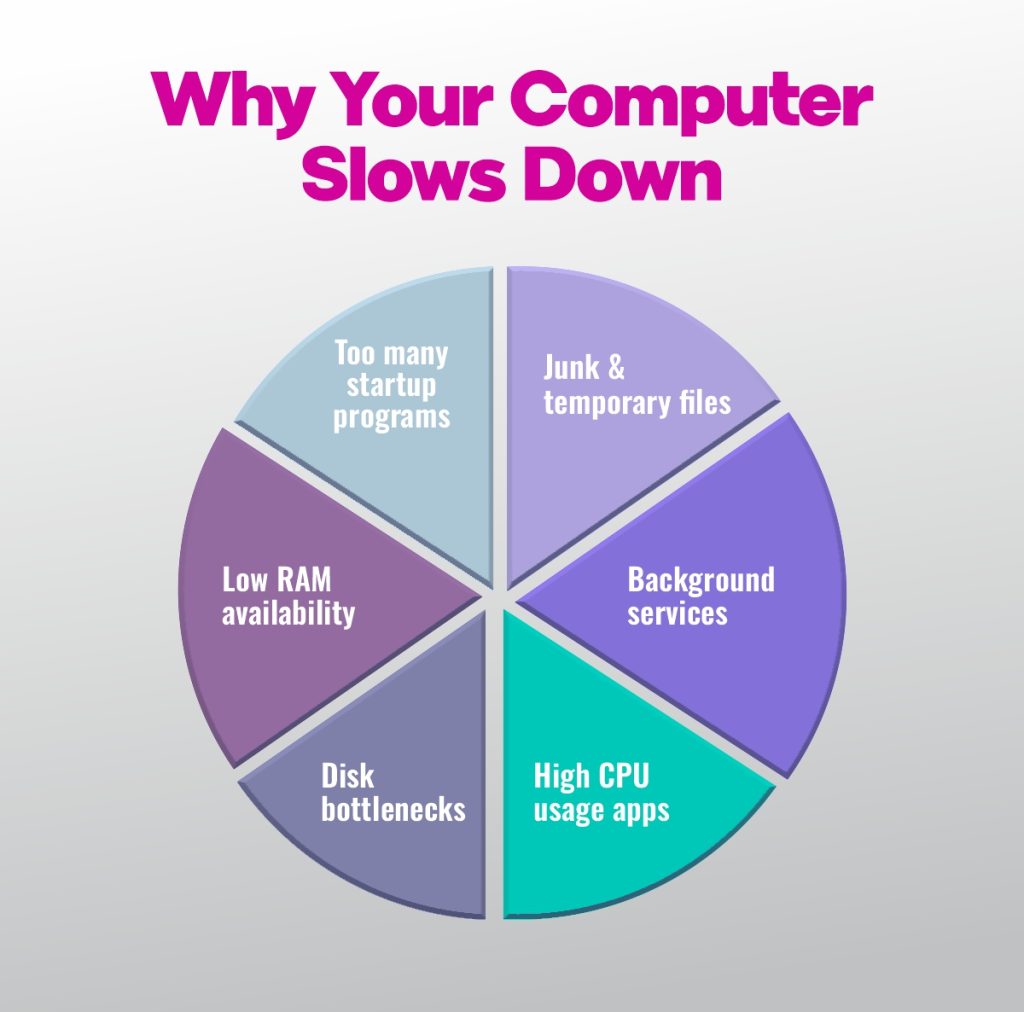
2. Remove Unnecessary Junk Files Regularly
As you use your computer, it gathers up lots of bits and pieces it doesn’t really need: temporary files, your browser’s saved info (the cache), and stuff that’s left over after you install programs. All of this takes up room on your drive and makes things run slower.
Cleaning these out periodically gives you more space and makes your computer much faster. Thus, a tidy computer simply feels livelier and works more smoothly for everything you do.
3. Control Startup Applications for Faster Boot Times
When you turn on your computer, many programs often open on their own, even if you won’t use them right away. This makes your computer take longer to get going and leaves you with less memory to do things.
If you stop programs you don’t need from starting up automatically, your computer will get to a usable state much more quickly and will run a lot more smoothly. You can reduce your computer’s load and get a faster response to your requests with a little background tidying, all without much effort.
4. Prioritize CPU Usage for Important Tasks
Certain applications consume a significant amount of your computer’s energy, while others operate quietly in the background.
If you tell your computer to give the bulk of its ‘thinking’ power to the most important jobs, it’ll focus on those first. Consequently, things like editing videos, playing games, or working with enormous files won’t be sluggish, and your computer will generally work in a much smoother, more efficient way. Getting resources to the right places makes a massive difference to how your computer performs.
5. Monitor System Performance in Real Time
If you want to know why things are running slowly on your computer, you really need to know how well it’s doing. Keeping an eye on how much your CPU, memory (RAM), hard drive, and internet connection are being used is a great way to spot problems as soon as they start.
Soon you’ll have tools that show you exactly what’s going on with your system, on a dashboard that’s easy to read. That way, you can instantly find the programs needing a lot of power and do something about it to keep everything running smoothly.
6. Manage Background Services Efficiently
Many processes are running on your computer behind the scenes, using up its power without your knowledge. Many of these processes are unnecessary for your current tasks.
By managing these background programs, you can reduce the strain on your system and free up more memory for your computer. Getting rid of programs you aren’t using will make things move faster and, importantly, give the programs you are using a bigger chunk of your computer’s resources for a better experience.
7. Improve Memory Usage for Better Multitasking
When your computer doesn’t have much free memory, things get sluggish, and this is particularly noticeable if you’re juggling many programs all at once. Good memory management, though, means that things will run a lot more smoothly when you’re doing several things at the same time.
The PC is tasked with getting rid of RAM that’s not being used and making the programs you are using work as smoothly as possible. As a result, your computer can handle more tasks at once without suddenly slowing down or stopping altogether.
8. Optimize Disk and File Access Speed
How fast your computer feels depends massively on how quickly its ‘disk’ (that’s where it stores everything) works. A slow disk can cause annoying delays in finding things, opening files, or starting programs.
Making your disk work more efficiently means getting to your information faster and having things run more smoothly overall. Essentially, by controlling how programs use the storage space, you can get rid of the points where everything gets held up and make your computer respond to you in a much more lively fashion.
9. Adjust Power Settings for Better Performance
How your computer uses its power is generally a trade-off between how much energy it uses and how quickly it works. But the way it’s set up at the factory settings might slow things down when you really want it to go full speed.
You can get a lot more out of your computer when you’re doing things that require a lot of it by changing your power plan. With the right settings, your computer will use its energy smartly to get a boost in speed when you’re pushing it, yet still be power-conscious when you’re not doing much at all.
10. Maintain System Stability with Process Monitoring
When programs suddenly quit or completely freeze, they interrupt your work and slow down your computer. Monitoring your computer’s activities is crucial for maintaining a stable system and preventing potential issues. In fact, by watching how things perform, you can find the apps that are causing trouble and, as a result, keep everything humming along nicely for the long haul.
TurboCharger: Smarter System Optimization Made Simple
TurboCharger is all about making your computer run at its best with a clever focus on your processor and what your system’s doing. Many programs require manual adjustments, but this tool intelligently enhances the applications you use most, providing a much smoother experience.
And things are about to get even better! With AI features, you can get a picture of how you use your computer and adjust its behavior accordingly. On top of that, this tool gets rid of pointless files that are taking up space, provides a live view of how your computer is doing, and offers a way to manage different profiles for when you’re gaming, working, or watching streams.
TurboCharger also holds the power to gently reduce the memory used by programs you aren’t doing anything with, to be able to tell the CPU which programs are most important, to decide which order the computer reads and writes to the hard drive, and to automatically pick the power setting for what you are currently doing.
All these features will work together to make your computer feel much more responsive and efficient, and you won’t need to be a computer expert to get it.
Final Thoughts
You don’t always need to buy a newer computer to make it run better. Often, simply being smarter about how your computer uses its strengths will give you a huge boost. With a bit of sensible fine-tuning, your system will feel smoother, respond more quickly, and do lots of things at once with more ease.
Performance-boosting software gives your computer a boost, which is useful, because it does so much of the tricky tidying up, you’d have to do yourself and ensures your machine is really using all its strength. The combination of all its efforts, including getting rid of junk files, squeezing the most from your processor, and monitoring everything that is running behind the scenes, delivers a computer that is notably faster and much steadier.
TurboCharger bundles all these features, using automatic actions and smarts to put performance improvements within reach of everybody. And as it gains more sophisticated abilities, you’ll have even more say in how your computer behaves when you’re doing normal, daily tasks.
Want to speed up your PC?