
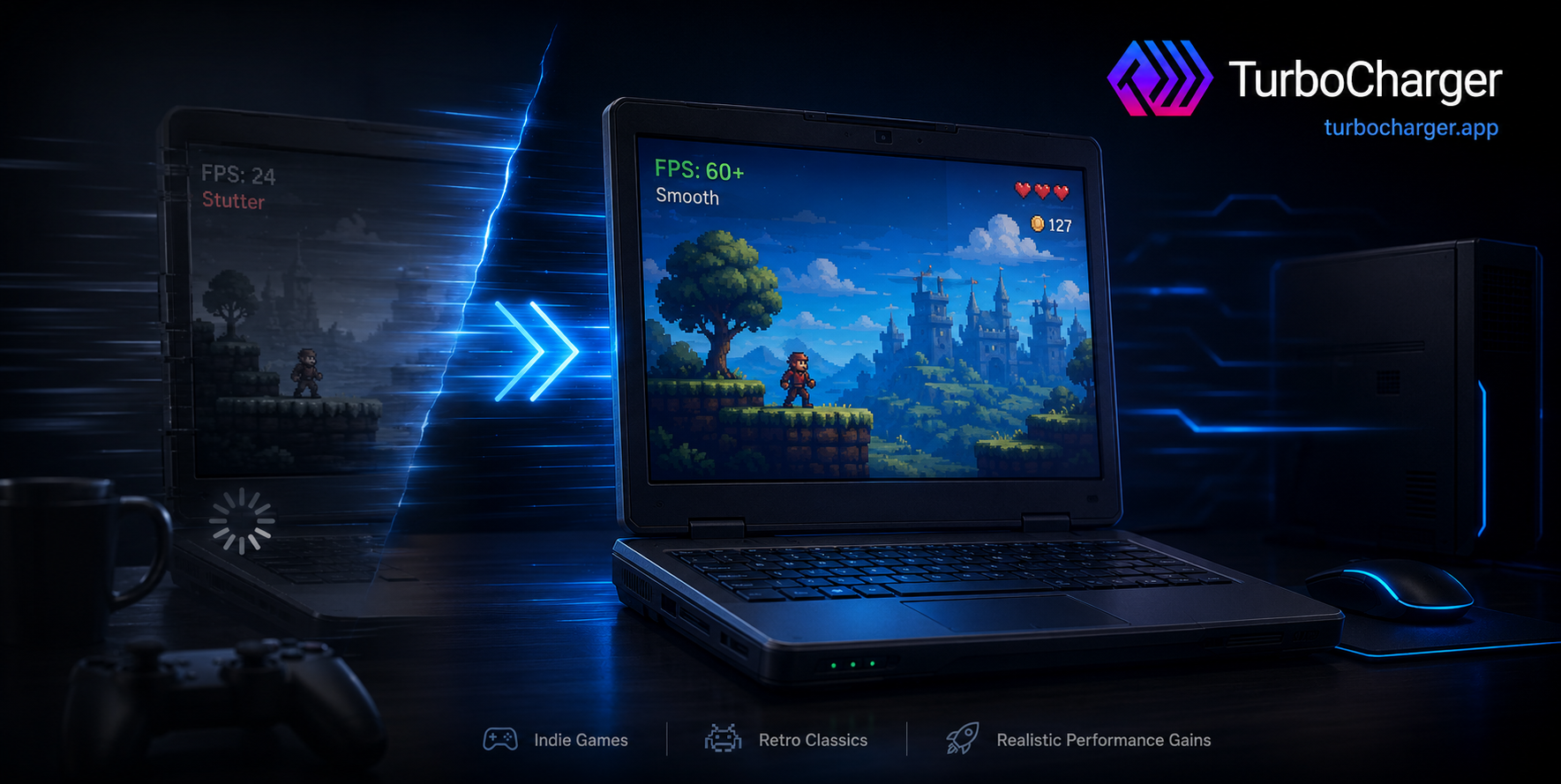
Many gamers believe that an aging laptop chip cannot handle the games they enjoy, which is why some will put the machine in a drawer or spend money on a new one. But you would be wrong to think that. Take the i3-7100u, for instance; it is a dual-core of modest means, but if you go about it the right way, you can get your older and lighter titles running at a decent frame rate. It has nothing to do with brute force and everything to do with managing your resources. Give a game what it needs, and you will notice the stutters go away and menus are more responsive.
We have put together this guide to show you some straightforward ways to get the best performance from a Core i3 processor. You will also find out how to use TurboCharger, an unobtrusive little app for prioritizing your software. It lets you direct the system’s power where you need it without tinkering with the hardware.
Understanding What the i3-7100u Can and Cannot Do
You should understand the limitations of your PC before making any adjustments. Take the i3-7100u, for instance: an Intel Kaby Lake chip that came out in late 2016 and was put together to be at home in a slim, unobtrusive laptop, not some kind of gaming machine. Once you understand how people use it, the rest of your optimization will make much more sense.
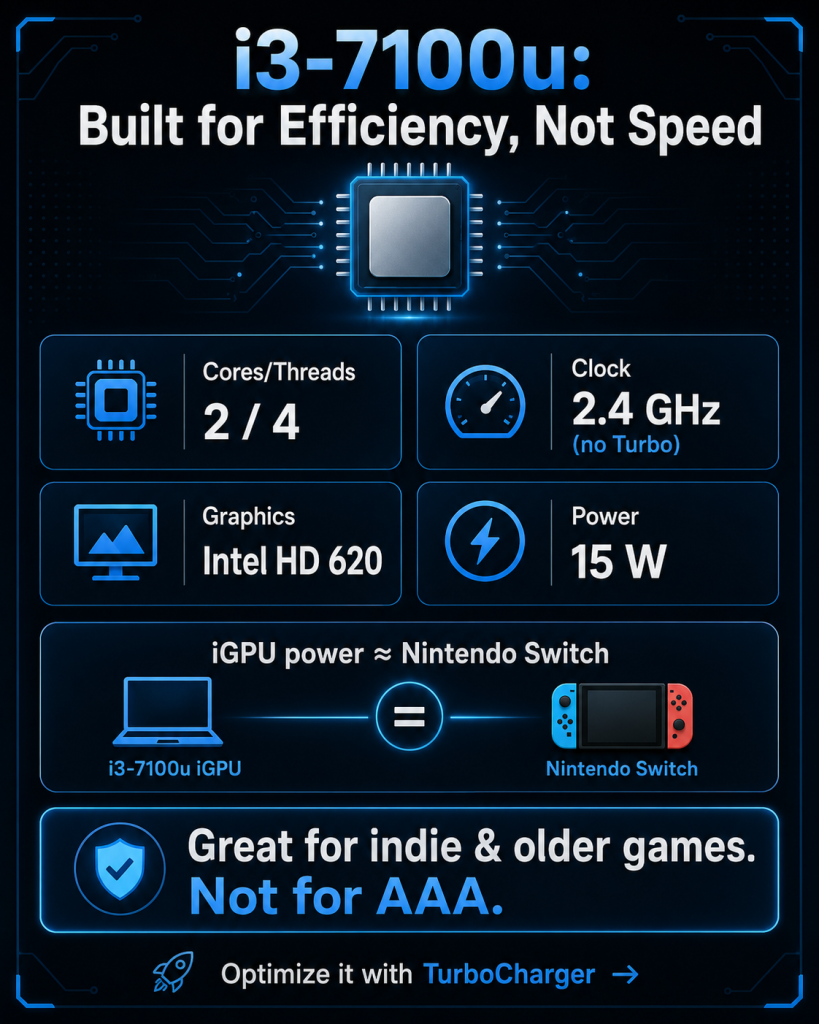
Here are the specs that matter most for gaming:
- 2 cores and 4 threads: Hyper-Threading on the chip’s two physical cores lets them handle two tasks at once, but don’t expect modern games to be happy with it; any title that wants four or more real cores will put a strain on this setup.
- A fixed 2.4 GHz clock speed: There’s no Turbo Boost or way to overclock with a locked multiplier, as you might find in a pricier chip, so under load it won’t pick up any extra speed. It is what it is.
- 3 MB of L3 cache: A handy bit of fast memory for your day-to-day work, though it has a habit of running out of room in some of the heavier scenes.
- Intel HD Graphics 620: As for graphics, you are relying on the integrated Intel HD 620 since there is no discrete card to speak of. In terms of floating-point performance, its output is on a par with a Nintendo Switch, which gives you a good idea of what kind of targets to set for yourself.
- A 15-watt power budget: The design is all about preserving battery life rather than going fast, and in power-saving mode it will even go as low as 7.5 W.
Why Resource Allocation Beats Brute Force
You have just two cores to work with, so your game must vie for processor time with every background process. If a chat window, an updater, and a browser all claim the CPU at the same time, they leave your game with the scraps. The lag, the dropped frames, and the sluggish loading screens are the result of this arrangement.
There is a simple technical reason for it. Windows allocates processor time by way of a priority system that gives each active program a rank. The ones with the better rank get first dibs; the rest have to stand aside. If you had a chip with dozens of threads, you would not think twice about it, but on a dual-core, the order in which things are processed is what separates a smooth experience from one that stutters.
Some players will tell you their PC seems to run faster as soon as they close any programs they are not using before starting a game. It works, but it is a chore, and you are bound to forget. Prioritization software is a more elegant fix. You don’t have to close anything; the software just tells your system which apps should be at the front of the line. Your game gets a more consistent supply of power while the background chores can wait.
What Is TurboCharger?
With TurboCharger, you can let the software you use most have the performance it is due. The app is designed to be lightweight and will intelligently divvy up your PC’s resources for you. You don’t have to go around shutting down programs; it handles app priorities on its own, quietly directing processing power where it is needed in the moment. Being easy on system resources makes it an ideal companion for an efficiency-minded chip like this one.
And while gamers make up a big part of its user base, the appeal extends beyond them. Since TurboCharger is all about resource management, all sorts of people put it to work:
- Gamers prioritize titles to minimize lag and keep sessions smooth.
- Programmers give code editors, compilers, and debuggers the resources they need.
- Video editors speed up rendering by pushing editing software to the front.
- Graphic designers keep design and image tools responsive under load.
- IT managers allocate resources across critical business software.
TurboCharger also keeps the barrier to entry low. It comes with a 14-day free trial that unlocks every feature, with no charge until the trial ends and the option to cancel at any time. That setup lets you test the real difference on your laptop before you commit to anything.
Want to increase your PC speed? Read More!
How TurboCharger Optimizes the i3-7100u for Gaming
TurboCharger is built around one clear idea: allocate your PC’s resources so the apps you care about run their best. For a modest processor, that focus is precisely what you need.
Here is how the tool puts your gaming first.
Automatic App Prioritization
With TurboCharger, your PC is put to better use. The program monitors your activity and raises the priority of the apps you need, whether for work or fun. You start up a game, and it knows it right away, channelling system resources in its direction. All of this is done unobtrusively in the background so there is no need to go digging in Task Manager or tinker with your settings while you are in the middle of things. In short, your game has more room to run.
Custom Priority Control
There are times when you want to be the one with the final word. With TurboCharger, you can do just that by manually setting the priority of certain programs, putting your game at the head of the class and leaving it there. If you know what you’ll be playing, you can make it a top priority before launching the title. Or if you have background apps in the way of updaters, browsers, or sync tools, you can lock your game in so they don’t come along and take over.
A Faster, Smoother Experience
What you are after in the end is a cleaner way to game. TurboCharger will end the lags and other disruptions that plague older chips by easing the strain on your two cores. It means you can fully immerse yourself in the action without those pesky micro-stutters breaking your concentration. With a processor that has little headroom, you want to get every bit of performance you can.
An Interface Anyone Can Use
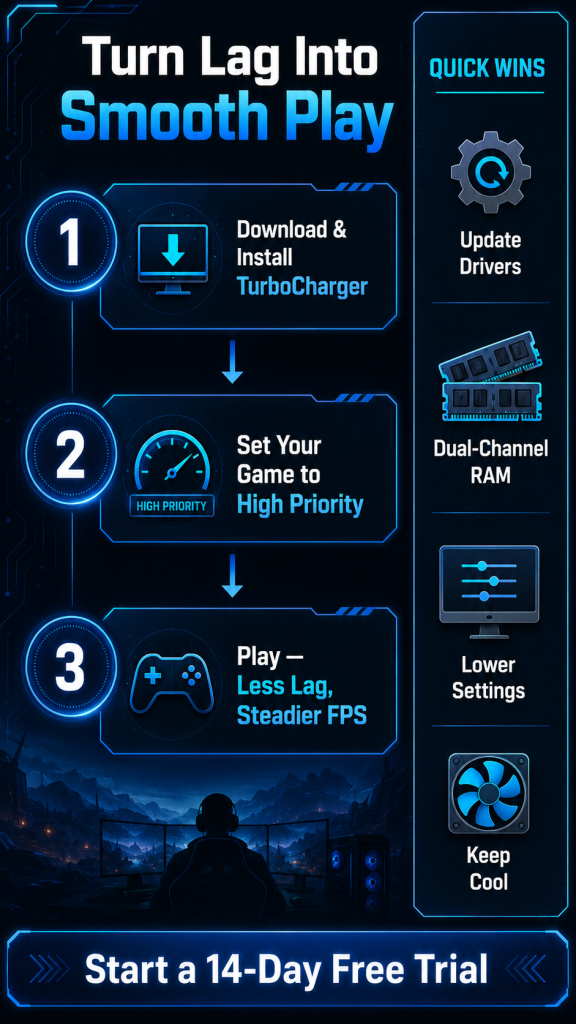
You do not need to be a technician to benefit. TurboCharger uses a clean, intuitive layout that lets you switch priorities between apps in seconds. Setup takes just three steps:
- Download the app from the official site.
- Install it with the standard setup wizard.
- Begin prioritizing your games and key programs immediately.
From there, the software handles the heavy lifting while you enjoy your games.
Extra Steps to Improve Computer Speed for Gaming
TurboCharger does the core work, yet a few habits pair nicely with it and help you improve computer speed even further. Because this chip leans so heavily on its integrated graphics and limited memory, small tweaks add up fast. Try these in order of impact:
- Update your graphics drivers: Fresh drivers often carry performance fixes for popular games, and they cost nothing to install.
- Lower in-game settings: Drop shadows, texture quality, and resolution first. These free up the most breathing room on the HD Graphics 620 with the least visual sacrifice.
- Use dual-channel memory: This chip supports two memory channels, and the integrated GPU borrows system RAM for graphics. Two matched memory sticks can noticeably boost frame rates over a single stick.
- Trim your startup programs: The fewer apps that load at boot, the more resources remain for your session later.
- Keep the laptop cool: The chip throttles itself once it nears its 100°C thermal limit. A clean vent and a hard, flat surface help it holds speed.
- Free up storage: A cluttered drive slows loading times, so clear space and consider an SSD if you still run a hard drive.
Taken together, these tips make learning how to speed up computer sessions feel far less intimidating.
Setting Realistic Expectations
You have to be honest about it. It is only in keeping with good guidance to say that no amount of software is going to turn a 2016 dual-core into a gaming rig of today’s caliber. The i3-7100u is not as powerful as a desktop processor you would buy now, and its integrated graphics are not strong enough for AAA games.
What TurboCharger and these practices give you is optimization, not some kind of magic. But for a student or a casual gamer making do with a budget laptop, that is usually sufficient. You will see:
- Indie and esports titles running with more smoothness
- Your older favourites holding up better
- Less of those stutters that get in the way of a good session
- And your laptop will have a bit more useful life in it before you put it to pasture.
Then there is the matter of your wallet; since TurboCharger does its job without any need to change the hardware, you are protected there too. Put simply, we want you to have a better experience with what is already in your PC.
Final Thoughts
You don’t have to write off your gaming just because the processor is showing its age. The i3-7100U may not be as powerful as today’s hardware, but with a little resource management, you can still get some use out of it. It comes down to where you put your system’s limited power; you want to direct it to the games and apps that matter instead of having it squandered on background noise.
TurboCharger is made for these situations. With its user-friendly interface and a mix of automatic and custom prioritization, it will coax the best out of your machine without you having to touch the hardware. Add in some good old-fashioned habits like keeping your drivers current and running dual-channel memory, and the difference is plain to see.
Why not try it for yourself? A free trial is available if you want to put it to the test. Put some new life in an old laptop and get back to the games you enjoy.