
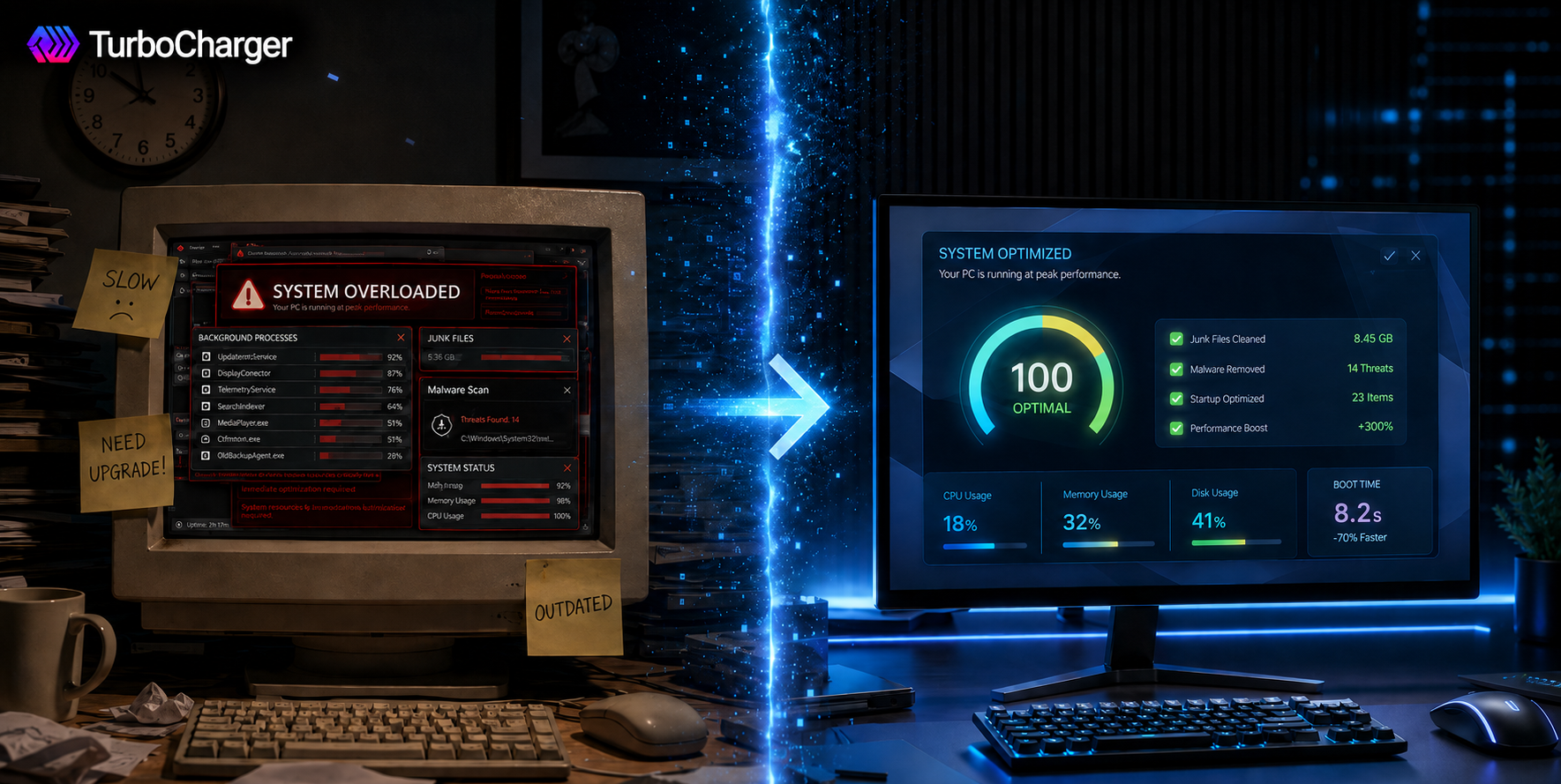
You might expect a computer to last a long time, but its performance often declines long before the hardware is ready to be retired. Tasks that used to be done in a matter of seconds, like booting up or opening an app or a web page, can drag on for minutes these days.
Most people will immediately consider replacing the old machine with a new one, but that is not always necessary. Often, the culprit is software: a buildup of junk files, programs running in the background, things you don’t need at startup, or simply a lack of upkeep.
There is no need to fork out hundreds, if not thousands, of dollars to remedy the situation. With the right tools and some proven optimization methods, you can restore your device’s responsiveness and extend its lifespan.
We have put together this guide to show you how to speed up old computer in 2026 and what the TurboCharger App can do to make it all easier.
If you want to speed up an old computer system, you first need to understand why it is underperforming. It is a common misconception that hardware age is the only reason; in truth, most slowdowns are due to software inefficiencies that have built up over time.
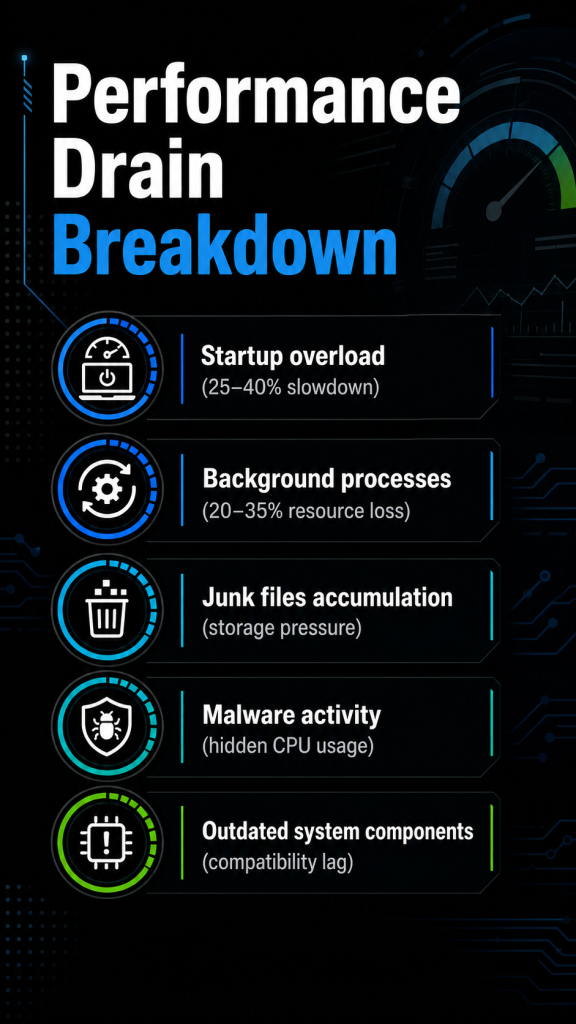
Why Older Computers Become Slow
- Accumulated System Clutter
Computers constantly generate temporary files, cache data, logs, and leftover installation files. While individually small, these files can accumulate into several gigabytes over time.
This clutter can affect:
- Storage efficiency
- Search functionality
- Application loading times
- Overall responsiveness
Routine cleanup helps eliminate unnecessary data and restore smoother performance.
- Limited Available Storage
Storage space directly affects system efficiency. When drives become nearly full, the operating system has less room to manage temporary tasks and virtual memory.
Low storage capacity may cause:
- Slower startup times
- Application lag
- Reduced multitasking performance
- Delayed file access
Maintaining adequate free space is essential for long-term system health.
- Background Processes
Many applications continue running even after they are closed. These background processes consume valuable system resources and often go unnoticed.
Examples include:
- Software updaters
- Cloud synchronization tools
- Messaging services
- Telemetry applications
Reducing unnecessary background activity can lead to immediate improvements in responsiveness.
- Outdated Drivers
Drivers allow hardware components to communicate with the operating system. Outdated drivers can create compatibility issues and negatively impact performance.
Problems associated with outdated drivers include:
- System instability
- Hardware errors
- Reduced efficiency
- Software conflicts
Keeping drivers current ensures hardware operates at peak performance.
- Lack of Regular Maintenance
Many users only address performance issues after their computer becomes frustratingly slow. Unfortunately, small problems often compound over time.
Without routine maintenance, systems can experience:
- Excessive startup programs
- Significant junk file accumulation
- Malware infections
- Software conflicts
Preventive maintenance is far more effective than waiting until performance becomes a major issue.
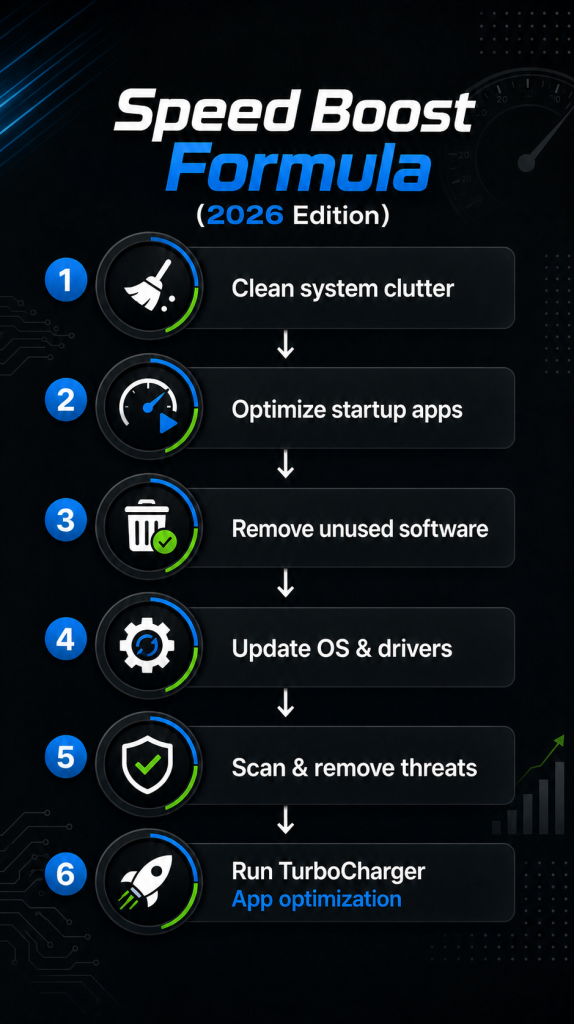
How to Speed Up Old Computer: Proven Ways to Improve Performance
So, you want to put some life back into an aging computer without the expense of a new one? There is some good news on that front: several straightforward fixes will give you the kind of performance boost you are after.
- Remove Unnecessary Startup Programs
If you are wondering why an older machine is running a bit sluggish, the most common reason is the sheer number of programs that are set to run on their own as soon as you power on. Before you even touch the keyboard, each of these startup applications is already demanding CPU, storage, and memory.
It is easy for things like gaming launchers, media players, or update managers to work their way into the startup routine, along with your cloud storage and messaging apps. You might not think much of them in isolation, but together they have a pronounced effect: boot times get longer and the whole system is less responsive than it should be.
To review startup programs:
- Open Task Manager.
- Navigate to the Startup tab.
- Review the list of enabled applications.
- Disable programs you do not need immediately after startup.
Reducing startup applications allows your computer to dedicate more resources to the tasks that matter, helping it become usable much faster after booting.
- Delete Temporary and Junk Files
Your computer is constantly making temporary files with everything you do. Whether you are installing a new application, updating your software, downloading something, or just browsing the web, it all leaves behind data that should be removed once you are done.
Over time , this data accumulates and takes up space on your storage. You end up with a cluttered system that is less efficient, and before long you will notice it runs tasks and accesses files more slowly.
Regular cleanup helps :
- Free valuable storage space
- Improve system responsiveness
- Reduce file system clutter
- Speed up file searches
- Improve application performance
How to speed up old computer? While manual cleanup is possible, many users prefer automated solutions because they can find hidden junk files that they often overlook. This is one area where TurboCharger can provide significant value.
- Uninstall Programs You No Longer Use
Most users have applications installed that they haven’t opened in months, or even years. These programs consume storage space and may continue running background services without your knowledge.
Unused software often includes:
- Trial applications
- Old games
- Redundant utilities
- Legacy software
- Programs installed for one-time tasks
Removing unnecessary software reduces resource consumption and helps streamline your system. A cleaner operating environment often translates into faster performance and improved stability.
- Keep Your Operating System Updated
Operating system updates do more than introduce new features. They frequently contain performance improvements, security patches, bug fixes, and compatibility enhancements.
Failing to update your operating system can result in:
- Reduced performance
- Software conflicts
- Security vulnerabilities
- Compatibility issues
Keeping Windows updated ensures your computer benefits from the latest optimizations and remains protected from known threats.
- Scan for Malware and Unwanted Software
Malware is a common cause of slow computer performance. Even if malicious software isn’t stealing information, it may still consume processing power, memory, and internet bandwidth.
Potential warning signs include:
- Unexpected pop-ups
- Browser redirects
- Sluggish performance
- High CPU usage
- Frequent crashes
Regular security scans help identify and remove harmful software before it significantly impacts system performance.
Signs Your Computer Needs Optimization
Performance issues often develop gradually, making them easy to overlook.
Common warning signs include:
- Long startup times
- Slow application launches
- Frequent freezing
- Excessive hard drive activity
- Browser sluggishness
- High memory usage
- Increased fan noise
- Unexpected crashes
If you notice multiple symptoms, optimization may significantly improve performance.
The Role of Optimization Software
You can get good results with manual maintenance, yet it is a time-consuming affair that demands a certain level of technical know-how. That is why optimization software has become so popular; it will find and put right any typical performance problems for you without the fuss.
The TurboCharger is a case in point and makes for an ideal solution.
What Is TurboCharger?
With the TurboCharger you can put your computer’s performance in better order. It is built to handle the maintenance and cleanup for you in a streamlined way, so there is no need to be manually combing through for junk files or any superfluous system activity. Instead, you have a single platform from which to do your optimization work more effectively. In short, the software is all about keeping your machine in good health and running at peak efficiency by taking care of the clutter and resource management for you.
How TurboCharger App Helps Extend Computer Lifespan
There is no better way to put it: a prime advantage of optimization is that it gives your current hardware more life. You will find plenty of people who think any kind of performance issue means you have to go out and buy a new machine, but with the right software optimization you can get back the responsiveness you need and put off an upgrade for another day.
The TurboCharger App is designed to keep things running well over the long term. It helps you do away with superfluous files and bottlenecks while making better use of resources and streamlining the kind of maintenance you have to do on a regular basis. If you are looking into ways to put some speed back in an older system without the cost of a replacement, this sort of software is a sensible option.
Benefits of Using TurboCharger
For users exploring how can i speed up an old computer, the TurboCharger app offers several practical advantages.
- Faster System Cleanup: The software helps identify and remove unnecessary files that consume storage space and reduce system efficiency.
- Improved Responsiveness: By reducing clutter and optimizing resources, applications can load more quickly and perform more smoothly.
- Simplified Maintenance: Many people avoid routine optimization because it feels overwhelming. TurboCharger simplifies the process and makes regular maintenance more manageable.
- Better Long-Term Performance: Consistent optimization helps prevent gradual performance degradation and extends the useful lifespan of your computer.
- User-Friendly Experience: The platform is designed to be accessible to users with varying levels of technical experience, making optimization easier for everyone.
Frequently Asked Questions
1. How often should I optimize my computer?
Most users should perform optimization at least once per month. Heavy users may benefit from weekly maintenance.
2. Can optimization software really improve performance?
Yes. By removing unnecessary files, reducing background activity, and improving resource management, optimization software can significantly improve responsiveness.
3. Is the TurboCharger App suitable for older computers?
Yes. TurboCharger is designed to help improve performance and maintain system efficiency, making it particularly useful for aging computers.
4. What is the fastest way to improve computer speed?
Removing startup programs, deleting junk files, updating software, and using optimization tools are among the fastest ways to improve performance.
5. Should I replace my old computer or optimize it first?
In many cases, optimization should be the first step. Many slow computers can regain satisfactory performance through proper maintenance and cleanup.
Conclusion
You don’t necessarily have to put down a lot of money for a new machine just because your computer has slowed down. More often than not, what you are seeing is the result of neglected maintenance: a buildup of junk files, too many applications running at startup or in the background, and software that is long past its prime.
Tackle those, and your device will usually be as responsive as ever, with some life left in it.
Getting an older system back up to speed is not about finding one magic bullet; it takes a mix of good housekeeping, smart management of your software and some optimization.
For that, there is TurboCharger, which makes it easy to keep things clean and efficient, even if you are not particularly tech-savvy. Your PC may be a few years on or near the end of the road, but with the right approach you can make a world of difference.
So, before you part with your cash for new hardware, give these methods a try and let TurboCharger do its work to ensure your computer runs without a hitch for the foreseeable future.
Want to learn more about how to speed up an old computer?