
A sluggish PC can really interrupt what you’re doing, make important things take longer, and just be generally annoying. Even doing something as simple as opening your web browser or changing between applications can feel slow if your computer hasn’t been looked after.
Luckily, you usually don’t need to buy a new computer to fix most speed problems. Getting the right mix of upkeep, making some changes to how things are set up, and using helpful tools can quickly get your computer back to being fast and working well.
In fact, research shows that almost 65% of people notice their PC getting slower within the first couple of years of using it, mostly because of unnecessary files, things running in the background, and old settings. So, a slowing down is common, but it can be fixed.
This guide gives you a complete plan to speed up your computer, with methods that have been shown to work, practical advice from experience, and useful programs. If you’re asking yourself, “How do I make my PC faster?” or looking for the best software to boost performance, you’ll find everything you need here to get your computer running more quickly and smoothly.
Why PCs Get Slower with Time
When you understand what’s causing a slow computer, it’s much easier to fix the problem.
The main reasons are:
- Too many programs starting up automatically, increasing how long it takes to start by as much as 40 to 60%.
- Lots of temporary files taking up 10 to 30% of your hard drive.
- Many processes are running in the background. Some computers have over 100 going at the same time.
- Old or out-of-date drivers and software which reduces how well things work together.
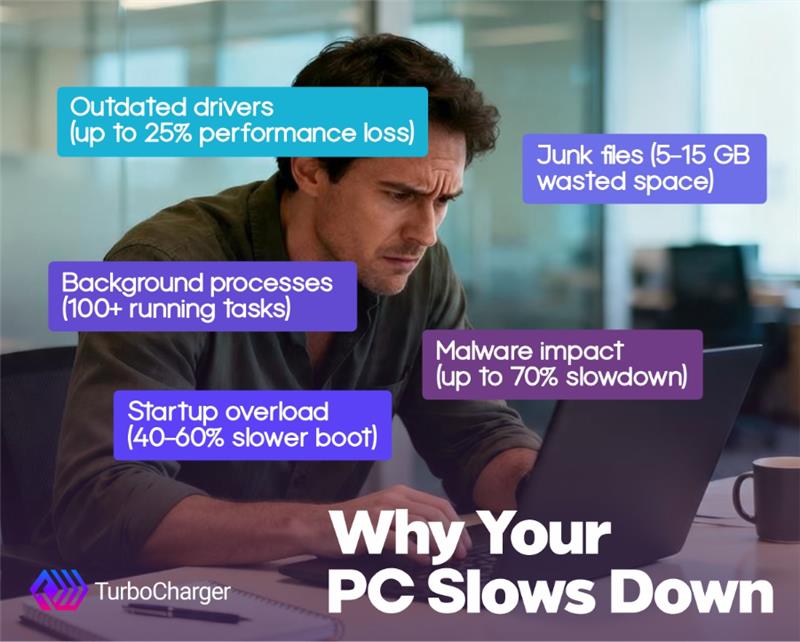
Over time, these things work together to make your computer less responsive. But if you deal with them one by one, you can improve your computer’s speed a lot.
The Best Ways to Make Your PC Faster
1. Reduce Programs That Start Automatically for a Faster Startup
Programs that start when you turn on your computer are a big, but often hidden, cause of slow performance. But making fewer apps start up can make your computer start up to 50% faster.
What you should do:
- Open Task Manager and select the Startup tab.
- Turn off any apps you don’t need to start automatically.
- Only leave on programs that are essential.
This is one of the fastest, and cheapest, ways to speed up your PC.
2. Clear Space on Your Hard Drive and Delete Unnecessary Files
Your computer is always making temporary files, logs and copies of data. A typical computer has 5 to 15 GB of junk files that aren’t needed.
How to get your space back:
- Use Disk Cleanup or Storage Sense.
- Delete temporary files and copies of files.
- Regularly empty your Recycle Bin.
A tidy system not only creates more space, but also helps your computer run faster.
3. Upgrade to an SSD (The Biggest Improvement You Can Make)
If you’re still using an old-style hard drive, changing to an SSD can completely change how you use your computer. SSDs are 5 to 10 times faster than hard drives, and start up times go down from 60 seconds to less than 15.
What you get:
- Apps start up much faster.
- Files copy much more quickly.
- You can do lots of things at once with no problem.
This is one of the most significant ways to instantly make your PC perform better.
4. Get More RAM for Better Multitasking
RAM (memory) directly affects how many programs your computer can use at the same time. In 2026, we’d recommend:
- 8 GB for basic use.
- 16 GB for normal use.
- 32 GB or more for demanding tasks or gaming.
Upgrading from 8 GB to 16 GB can improve how well you handle multiple tasks by 30 to 50%. If your computer gets slow when you switch between apps, more RAM will greatly improve your computer’s speed.
5. Keep Your Operating System Up to Date
Updating your operating system is essential for both speed and security. Why it’s important:
- Updates fix problems and improve how things work.
- Security updates stop malware slowing things down.
- New features use your computer’s resources more efficiently.
Set updates to happen automatically and regularly check for optional updates for your drivers.
6. Turn Off Visual Effects and Animations
Visual effects make your computer look nicer, but they use up resources. Turning them off can improve how responsive your computer is by 10 to 20% on older computers.
How to do it:
- Open Performance Options.
- Choose “Adjust for best performance”.
This is particularly useful for people trying to make an older computer run quicker.
7. Remove Malware and Programs You Don’t Want
You might not realize it, but malware will use your computer’s power. It can make your computer up to 70% slower. To have your computer working as it should, you should run a full antivirus check every week, delete programs you don’t know, and be careful where you get downloads from. A computer that’s safe is a computer that’s quick.
- Manage Background Processes Efficiently
To improve your PC speed, you need to deal with everything going on behind the scenes. Loads of applications, and as a result, a lot of processes, are frequently running on computers without you even knowing about it, and many of them aren’t needed.
Use Task Manager to see which programs are taking up the most of your computer’s power, then shut down anything you aren’t presently working with, and limit what apps can do when you aren’t directly using them. If you decrease all this activity in the background, your computer will experience a noticeable increase in speed.
- Enhance Power Settings
How your computer is set to manage its power really changes how well it runs, and this is especially true for laptops. For the best speed, you should pick ‘High Performance’. This can make your computer’s processor 10% to 30% faster, but it will use more battery since it focuses on being quick, not on conserving energy.
10. Defragment HDD (or Optimize SSD)
Getting your hard drive or SSD working at its best makes your computer find things much faster. Regular hard drives (HDDs) get faster when you “defragment” them. But Solid-State Drives (SSDs) are improved by being optimized, not defragged. This means your files will open more quickly, and your computer will feel faster.
11. Update Drivers Regularly
Keeping drivers up to date is important, as they allow your hardware and software to talk to each other. Old drivers can reduce speed by up to 25%. Focus on updating your graphics, network and chipset drivers; current drivers mean a faster, more stable computer.
12. Optimize Your Browser
Your browser is generally what demands the most from your computer. A single browser tab can take up 500MB of your computer’s memory, and those extra features you get from add-ons (or extensions) can make it 20 to 40% slower. Get rid of extensions you aren’t using, close tabs when you’re finished with them, and routinely delete your browser’s saved files (the cache). A browser that doesn’t use so much of your system will improve how your computer runs in general.
13. Disable Unnecessary Windows Services
Disable unnecessary Windows services. Windows has lots of things running in the background. Only turn off the ones you don’t need, and don’t touch important system processes. Done carefully, this can speed things up further.
14. Monitor Performance Metrics
Monitor performance metrics to find what’s holding your computer back. Use Task Manager, Resource Monitor or Performance Monitor and pay attention to CPU usage, how much memory is being used, and disk activity. Keeping an eye on these things helps to keep your system optimized.
15. Use Reliable Performance Boosting Software
Using reliable performance-boosting software is a good idea, as doing optimisation manually can take a long time. This kind of software cleans up and optimises things automatically, reducing how much you must do yourself and delivering consistent improvements. It will remove junk files automatically, manage programs that start up with Windows, and handle background processes, improving system stability.
Fix Your PC with TurboCharger
Sometimes optimisation isn’t enough. If your system is more than five years old, freezes or crashes a lot, or can’t run current programs, it’s time to consider upgrading parts (RAM, an SSD, the graphics card) or replacing the whole system. TurboCharger is a solution.
You don’t need to be a computer expert or spend a lot of money to increase your PC’s performance. A combination of sensible maintenance, upgrading hardware, and good software can give you a big improvement. By reducing startup programs, cleaning storage, updating drivers, and managing background processes, you can get your computer working faster and responding to you more quickly.
For a simpler approach, performance-boosting software does all the work for you, cleaning things up and making it work more efficiently so your computer runs as well as possible without you having to do it all manually. TurboCharger is a powerful and easy way to speed up your computer.
Want to speed up your computer?