
An underperforming computer costs you more than just time. It scatters your concentration, puts your work on hold, and makes you wait over what should be a simple click. The good news is that, in most cases, the problem is not faulty hardware. Rather, you have an overabundance of programs vying for the attention of your processor and memory. The machine itself is not at fault; it is merely preoccupied with tasks you did not put there. Therefore, a real computer speed up rarely starts with a shopping cart. It starts with control over what gets resources first.
In this guide, we walk through a computer speed up plan you can finish today. First, you will learn to spot the true cause in about a minute. Next, you will apply fixes that deliver visible results within minutes. Finally, you will see how the TurboCharger App protects those gains by managing app priority for you.
Why Your PC Feels Slower Every Month
Performance can gradually lag over time. A new tool gets put in place one week, then some browser extension the following week. Yet for every addition, there is a background process that never truly rests.
Given enough time these things accumulate. The processor is left to divide its focus among a host of duties rather than just a handful, with cloud sync and antivirus running under the radar alongside your chat programs and update managers. In short, after a few months all those quiet operations have built up.
How Windows Actually Shares Your CPU
Most guides won’t tell you this, but your CPU can’t run all processes at once. What Windows does is have its scheduler break time down into tiny units known as quantums, on the order of 20 or 30 milliseconds. Those are doled out to threads according to their priority.
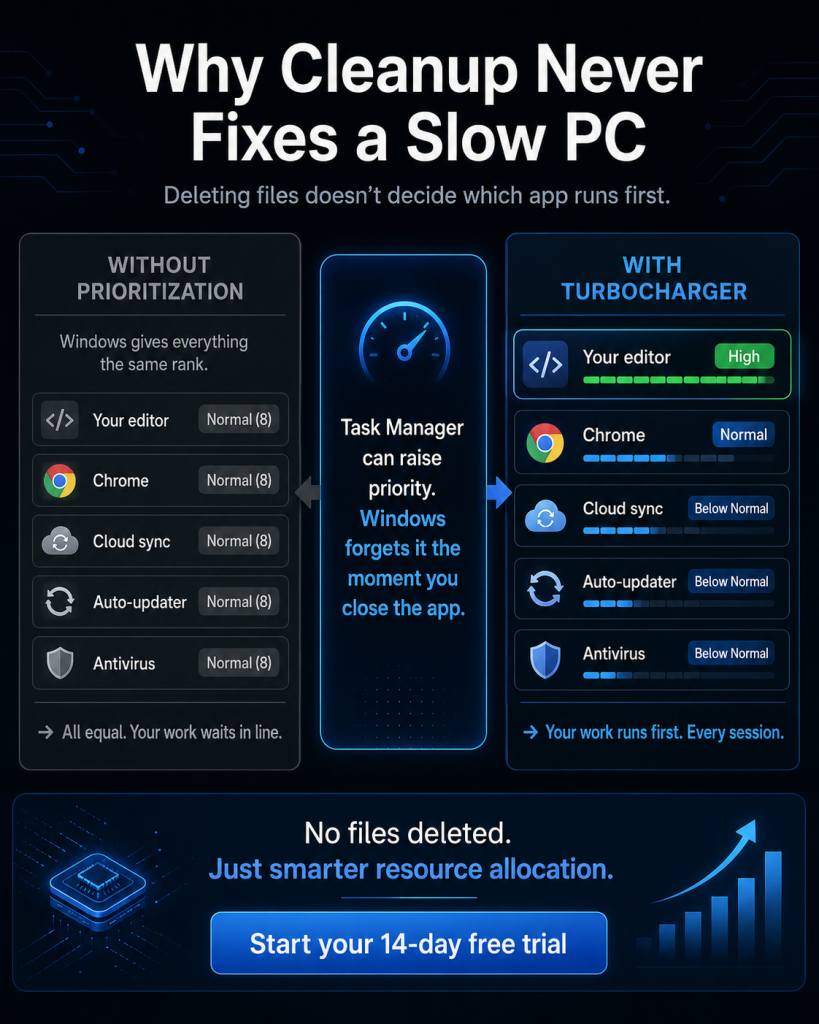
In Windows a thread can be ranked anywhere from 0 to 31, and if a higher one requires the CPU, it will put an end to what a lower-ranked thread is doing. For the most part, though, any application put on the system is given a Normal rank with a base priority of 8. That means the video editor must compete for resources on the same level as some background updater.
Why That Hurts Performance
Context switches come with a cost every time the CPU has to move from one process to the next; it must put the state of one thread on hold and bring another online. On their own such transitions are measured in microseconds.
But with hundreds of processes vying for attention, the overhead adds up in a hurry. The machine expends considerable effort just to determine its next task, and that is what accounts for the bulk of any lag you might see. Put simply, if one wants to gain speed from a computer, it is a matter of setting the right priorities rather than relying on brute force.
Diagnose the Real Cause in 60 Seconds
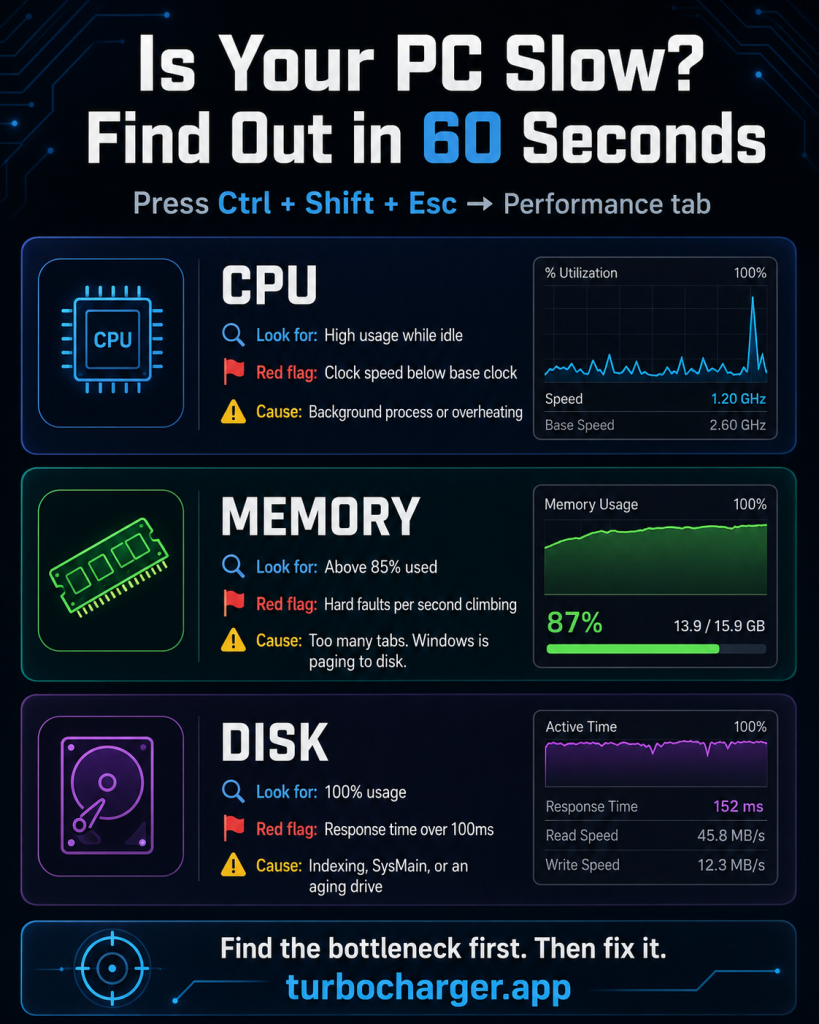
There is no point in expending effort on guesswork; let the data speak for itself. A proper way to speed up a computer is to start with a diagnosis in Task Manager. Hit Ctrl + Shift + Esc and go to the Performance tab.
- Check Your CPU
Should you discover the CPU running hot while the machine is idle, it is likely a background process at work. Sort the Processes tab by CPU usage and check the top three. Also monitor your clock speed for performance. If it is not holding anywhere near the rated base, you can put down the discrepancy to thermal throttling or some power setting.
- Check Your Memory
When memory usage tops 85 percent, Windows will either compress the pages or write them to disk. A look at the hard faults per second in Resource Monitor shows what is happening. If those persistent faults are sustained, it is a clear sign of paging on your part and the cause of most “everything freezes” type issues. Browsers are usually the culprit; with the way modern ones go about isolating every site in a separate process, they are prone to bring this on.
- Check Your Disk
A disk running at 100 percent is a sign of a particular kind of bottleneck. To get a better read on it, turn to Resource Monitor and check the Disk Response Time rather than the raw throughput.
If those response times are more than 100 milliseconds, the drive is saturated; on a mechanical hard drive, one will often put this down to SysMain or the indexing from Windows Search. It is best to find the source of the problem and apply the proper remedy, rather than simply addressing the symptoms.
Seven Quick Wins That Speed Up Computer Performance Today
These steps take under thirty minutes combined. Moreover, you need no technical background to complete them. Work through them for the fastest computer speed up results.
1. Restart Properly, Not Just Sleep
A full restart is the way to go to reset driver state and clear out the page file; it will also put an end to any memory leaks or orphaned handles that sleep mode would otherwise leave in place. Make this your first course of action, as it has a habit of resolving more complaints than one might expect.
2. Trim Your Startup List
If you need to do some housekeeping, go to the Startup apps tab on Task Manager. Windows will show you the startup impact for each entry. Should an app be consuming more than a second of CPU time at boot, or if there are disk writes of more than three megabytes, it will be marked down as High. You can go ahead and disable those, but please make an exception for your device drivers and security software.
3. Close the Tab Hoard
With Chrome and Edge, every site gets its renderer process, and those processes will run up 50 to 150 MB of RAM apiece. Do the math: twenty tabs can easily use up a few gigabytes. The remedy is to shut down any you haven’t used today and remove extensions that are no longer useful.
4. Free Up Drive Space
As for storage, leave at least 15% or 20% of the drive unallocated. Windows requires headroom to handle its page file, staging for updates, and the like. An SSD is more particular about it; the controller must have spare blocks on hand for garbage collection and wear levelling. Let the drive get too full, and one will notice a decline in performance.
5. Fix Your Power Plan
It is not uncommon for a laptop to come from the factory in Balanced mode; this has the effect of capping the minimum processor state so the CPU will run at lower clocks when there is little demand on it. To remedy that, go into Settings and find Power and battery under System. Change the power mode to Best Performance for when the unit is connected to an outlet.
6. Update Windows and Drivers
One should also be mindful of drivers. An old chipset driver can put a damper on power management, and graphics drivers of a certain vintage are prone to inducing stuttering and frame pacing issues. Be sure to install any outstanding updates and restart your system. It is a good way to head off all manner of peculiar performance bugs.
7. Run a Malware Scan
There is a constant drain on CPU cycles from adware and the like, not to mention any crypto miners that have gone undetected. Running a clean scan will quickly resolve this issue. For the most part, these seven steps are sufficient to address complaints. They do have a flaw though: they are not a one-off. The clutter has a way of coming back, so the process has to be done over again.
Why Cleanup Alone Cannot Improve Computer Speed
Cleanup tools remove files, but they cannot control which application runs first; that is the job of the Windows scheduler. As such, one can expect only a modest boost in computer speed from cleaning by itself.
Consider an intersection at peak hours without any traffic lights. Removing the litter off to the side is not going to ease the congestion. What is required is a person to direct the flow.
The Manual Workaround and Its Limits
With Windows you have the option to control priority. A right-click on any process in Task Manager will bring up Set priority, from which you can select Above Normal or High.
It is effective for the moment, but as soon as the application is shut down, the setting is gone; Windows has no memory of it. One is forced to adjust again at every restart and launch.
There are risks in such manual tuning as well. Put a process in realtime mode, and you run the chance of depriving system, mouse, and keyboard threads of resources, leaving your PC looking like it has frozen. For that reason, the majority put an end to manual prioritization after a week or so. This is where there is room for a purpose-built program to step in.
TurboCharger: A Dedicated Look at Automatic Computer Speed Up
TurboCharger takes a different route than typical cleaners. Rather than deleting files, it manages how Windows allocates CPU and memory across your running apps. In other words, it becomes the traffic controller your system lacks.
What TurboCharger Actually Does
The app sits between you and the Windows scheduler. It assigns and maintains priority classes for the programs you care about.
Critically, it holds those assignments. Where Task Manager forgets your changes on close, TurboCharger reapplies them every session. Your settings survive restarts.
Automatic App Prioritization
TurboCharger observes which programs you use most often. Then it promotes them automatically.
Your active work receives CPU time first, while background chatter drops down the queue. Meanwhile, you change nothing about your normal routine.
Custom Priority Control
Sometimes you know better than any algorithm. Accordingly, TurboCharger lets you assign priority by hand.
Pin your editor, compiler, or game to the top and leave it there. The app applies sane limits, so you avoid the Realtime trap described above.
A Genuinely Simple Interface
You do not need to memorize Windows internals. The dashboard lists your applications clearly.
Switching a priority takes two clicks. Additionally, setup runs in three steps: download, install, then start prioritizing.
A Weekly Routine That Protects Your Results
A single cleanup will not be enough, so it is better to put in place a brief habit. For instance, make it a practice to reboot the machine no less than two times a week and do a once-over of your startup items each month. If the PC seems to be lagging, check in with Task Manager. Do not delay installing updates; do them as soon as you can. And you can let TurboCharger in the background handle prioritization. In this way, what might have been a one-off boost to computer speed becomes something more enduring.
When Hardware Genuinely Is the Problem
There is no substitute for honesty: you will not be able to tune the software and save every machine.
Start by putting in a new mechanical hard drive. An NVMe drive will put out over 3,000 megabytes per second rather than the 550 or so from a SATA SSD, but the real gain is in random read speeds, which are up by orders of magnitude.
If a couple of open applications have you running at 90 percent memory utilization, it is time to add some RAM. Two matched sticks are best since dual-channel mode will about double the bandwidth.
Do not overlook temperatures either. A modern CPU will throttle its clock when it gets close to 100 degrees Celsius. On an older laptop, some fresh thermal paste and a good dusting can bring back performance that was thought to be gone.
That said, try the software side of things first. Not only is it the proper course of action, but a speed up from there will show if an upgrade is justified in the end.
Final Thoughts on Your Slow Computer Speed Up Plan
There is a tendency to put down a slow PC as a hardware problem when in fact it seldom is. Often the issue is one of direction. Windows is built to apportion CPU time equally among all the dozens of processes vying for it, which means the application you are using has to stand by while unimportant ones run their course.
The way to handle the issue is to diagnose the situation and put the quick fixes in this guide to work; the results will be apparent right away. But there is no need to go through that kind of cleanup monthly. With TurboCharger, you get consistent performance from session to session because it prioritizes your key apps. The payoff is responsive work, smooth gaming, and exports that are done in less time. If you want to put an end to the lag for good, take up the 14-day free trial of TurboCharger and let the computer get on with what you have opened.