
There is nothing to disrupt your day quite like a computer that has gone slow. You put up with the frustration of lagging performance whether you are on an online meeting, streaming a video, putting in the hours at work or just doing some web browsing.
It is all the temporary files, old software and background apps that build up over time; they are what make your machine less responsive and turn a matter of seconds into minutes for things you used to do in an instant.
But don’t think you have to fork out for a new PC or some costly upgrade to put an end to it. Often a little smart optimization is all it takes to get back to good performance. We have put together this guide to walk you through the usual culprits behind a sluggish system and offer some straightforward fixes any beginner can handle.
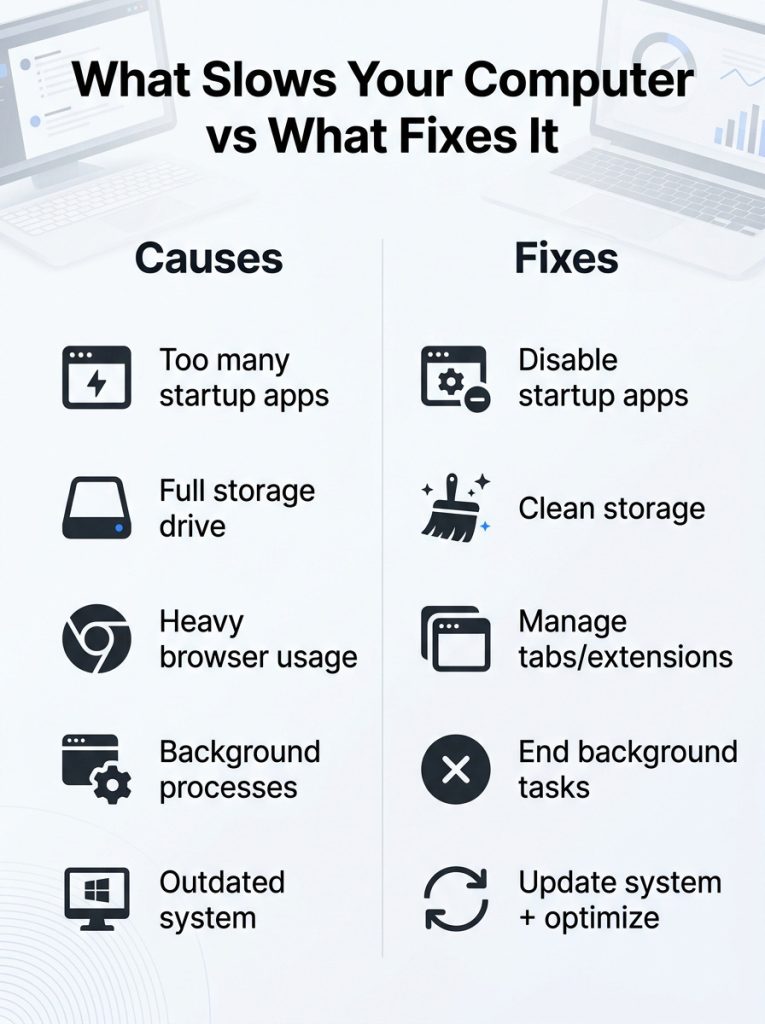
Speed Up Computer Performance: Common Causes of a Slow PC
It is rare for a computer to just suddenly slow down; more often, it is a gradual process. Put the kind of strain on your system you do every day with internet browsing, file downloads, installing new software, and having several applications open at once, and over time these little things add up, and you will see your efficiency drop.
Here are the usual suspects when it comes to a sluggish PC.
- Too Many Startup Programs
You have some apps that are essential to have running at boot, but there are plenty of others that go about their business in the background for no good reason. The trouble is, as you accumulate more of these startup programs, your machine will not only be slower to get going in the morning but also underperform while you are using it.
If you want to put some speed back into your computer in a hurry, culling back on your startup programs is an easy fix.
- Low Storage Space
For your computer to run at its best, it requires some free room on the hard drive. You will find that Windows has a hard time with virtual memory, updates, and the like once your storage is all but full.
The reason a full storage drive puts the brakes on your PC is simple: it hampers the system in several ways. It can no longer put down temporary working files or handle your browser cache as it should. Installing an update is less smooth, and programs don’t load with the same efficiency. In the end you are left with sluggish file transfers, apps that tend to freeze, and a general lack of responsiveness.
- Files That Commonly Waste Space
It is not uncommon for users to be taken aback at the volume of superfluous data that builds up with time. You will find your storage being eaten up by the usual suspects:
- Duplicate videos and photos
- Files you downloaded ages ago
- Internet temp files
- Unusable Software
- System cache
A bit of routine housekeeping is all it takes to keep things running smoothly and ensure the system stays in good shape for the long haul.
- Outdated Software and Drivers
There is no denying that old software and drivers are a recipe for performance bottlenecks and compatibility problems. You will find that in certain instances your hardware simply cannot run as it should when the drivers are out of date.
For that reason, you would do well to pay attention to some key updates and not let them go by:
- Graphics drivers
- The Windows OS
- Your browser
- Security programs
- Motherboard chipset drivers
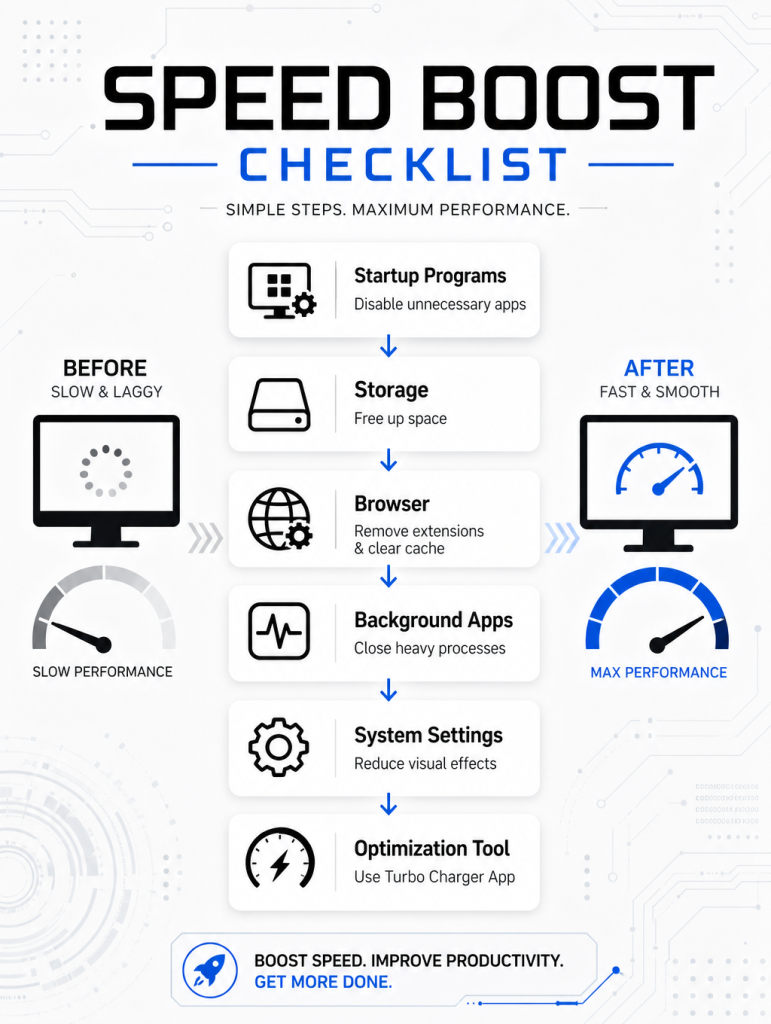
How to Speed Computer Up Step-by-Step
Improving your PC’s speed does not always require advanced technical skills.
The following methods are simple, effective, and beginner-friendly.
Step 1: Remove Unnecessary Startup Apps
Reducing startup applications can significantly improve boot times and system responsiveness.
How Startup Apps Affect Performance
Every startup program consumes:
- RAM
- CPU resources
- Background processing power
Even if you are not actively using these apps, they may still run silently after startup.
How to Disable Startup Programs on Windows
Follow these simple steps:
- Open Task Manager
- Click the Startup tab
- Review the enabled applications
- Disable programs you rarely use
This process helps your computer start faster and improves overall efficiency.
To speed up computer, tools like TurboCharger App make startup optimization easier by automatically identifying programs that affect performance the most.
Step 2: Clean Temporary and Junk Files
Temporary files build up every day while you browse websites, install software, and use applications. Although these files are created for short-term tasks, they often remain on your system permanently unless removed.
Benefits of Cleaning Junk Files
Removing junk files can:
- Free up storage space
- Improve loading speeds
- Reduce software lag
- Help Windows operate more efficiently
Step 3: Scan for Malware and Suspicious Programs
Viruses and unwanted software can silently consume system resources while running in the background.
Signs Your Computer May Have Malware
Common warning signs include:
- Random pop-up ads
- Browser redirects
- Slower internet performance
- Frequent crashes
- High CPU usage
Why Malware Slows Down Your PC
Malicious programs often:
- Run hidden background tasks
- Use internet bandwidth
- Consume memory and processor power
- Collect data secretly
Running regular antivirus scans helps protect both performance and personal information.
Step 4: Optimize Your Browser
Web browsers are often one of the largest consumers of RAM and processing power.
Common Browser Issues That Reduce Speed
Several habits can slow browser performance:
- Keeping dozens of tabs open
- Installing too many extensions
- Ignoring browser updates
- Allowing auto-play videos
Simple Browser Optimization Tips
To improve browser speed:
- Remove unused extensions
- Clear cache regularly
- Close inactive tabs
- Update your browser frequently
Many users searching for computer speed up solutions overlook browser optimization even though it affects everyday productivity heavily.
Step 5: Upgrade Your Hardware If Needed
Sometimes software cleanup alone is not enough. Older hardware may struggle with modern applications and multitasking.
Insufficient memory causes:
- Slow app switching
- Freezing
- Lag during video calls
- Delayed file loading
Upgrading to 8GB or 16GB RAM can provide noticeable improvements for many users.
Switching From HDD to SSD
Replacing an old hard drive with an SSD is one of the most effective upgrades available. SSDs offer:
- Faster startup times
- Quicker file access
- Better gaming performance
- Improved multitasking
- Reduced system noise
Even older computers often feel dramatically faster after upgrading to an SSD.
How to Make Computer Run Quicker with Better Maintenance Habits
Long-term performance depends heavily on regular maintenance habits.
- Restart Your Computer Regularly
Many users leave their computers running continuously for days or weeks. However, restarting clears temporary memory and refreshes system processes.
A restart helps:
- Free up RAM
- Complete pending updates
- Close background tasks
- Improve temporary slowdowns
Even simple restarts can improve responsiveness immediately.
- Manage Background Applications
Background applications continue using resources even when not actively open.
Examples include:
- Messaging platforms
- Auto-sync tools
- Gaming services
- Media launchers
Disabling unnecessary background apps frees up valuable resources for active tasks.
If you want to learn how to speed computer up effectively, reducing hidden background activity is essential.
- Keep Your System Updated
System updates improve both performance and security.
Updates often include:
- Bug fixes
- Performance improvements
- Driver enhancements
- Security patches
Ignoring updates may lead to instability, compatibility issues, and slower operation over time.
Why Use Turbo Charger App for PC Optimization
Manual optimization works, but it can take significant time and effort. Many users prefer automated solutions that simplify system maintenance.
TurboCharger helps streamline important optimization tasks such as:
- Startup management
- Junk file cleanup
- System performance monitoring
- Resource optimization
- Background process control
Benefits of Using Optimization Software
Dedicated optimization tools help users:
- Save time
- Reduce manual troubleshooting
- Improve system responsiveness
- Maintain consistent performance
For users who want to speed up computer performance without advanced technical knowledge, optimization software offers a simple and effective solution.
Common Mistakes That Slow Down PCs
Even after improving performance, certain habits can gradually slow your system down again.
- Installing Too Many Programs: Every installed application consumes storage and may add hidden services or startup tasks.
- Ignoring Browser Maintenance: Unused extensions and excessive cached files eventually reduce browsing speed.
- Downloading Untrusted Software: Unknown programs may include hidden malware or unnecessary background services.
- Never Cleaning Storage: Temporary files and duplicate data accumulate surprisingly fast over time.
Avoiding these habits helps maintain better long-term performance and system stability.
Final Thoughts
You don’t necessarily have to buy a new machine or pricy upgrades just because your computer has slowed down. More often than not, the trouble you are experiencing is down to poor maintenance or an overabundance of startup programs, temp files and background apps that have been left unchecked. But there is a way to get some of that speed back with a little optimization.
Keep on top of things by updating your software, clearing out storage, and running the occasional malware scan; it will make your PC more responsive and give it longer life. Then there is TurboCharger to make it all easier. Rather than wading through various settings and cleanup utilities by hand, this kind of dedicated software can handle the system maintenance for you in an efficient manner. It is a good way to ensure you have the smooth, fast performance you want, be it for work, streaming, or gaming.
For those looking to speed up computer and to get the maximum performance out of their PCs, download TurboCharger now!