
There is not much more trying on your patience than to see a download bar make slow headway when you are in the middle of an update for a new game, some software, or a work file of consequence.
It’s all too simple to blame your internet service and move on, but that’s seldom the whole picture. More often than not, the problem is with your computer and not the network. You have background programs and a jumble of settings and system resources vying for attention and sapping the power from your download.
The good news is you can remedy the situation without forking out for a better plan or any new equipment. Some simple tweaks will help. This guide walks through how to speed up downloads on PC using hidden tricks that target both your connection and your system, so your transfers finish faster and the frustration finally fades.
Why Your Downloads Crawl Even When Your Internet Is Fast
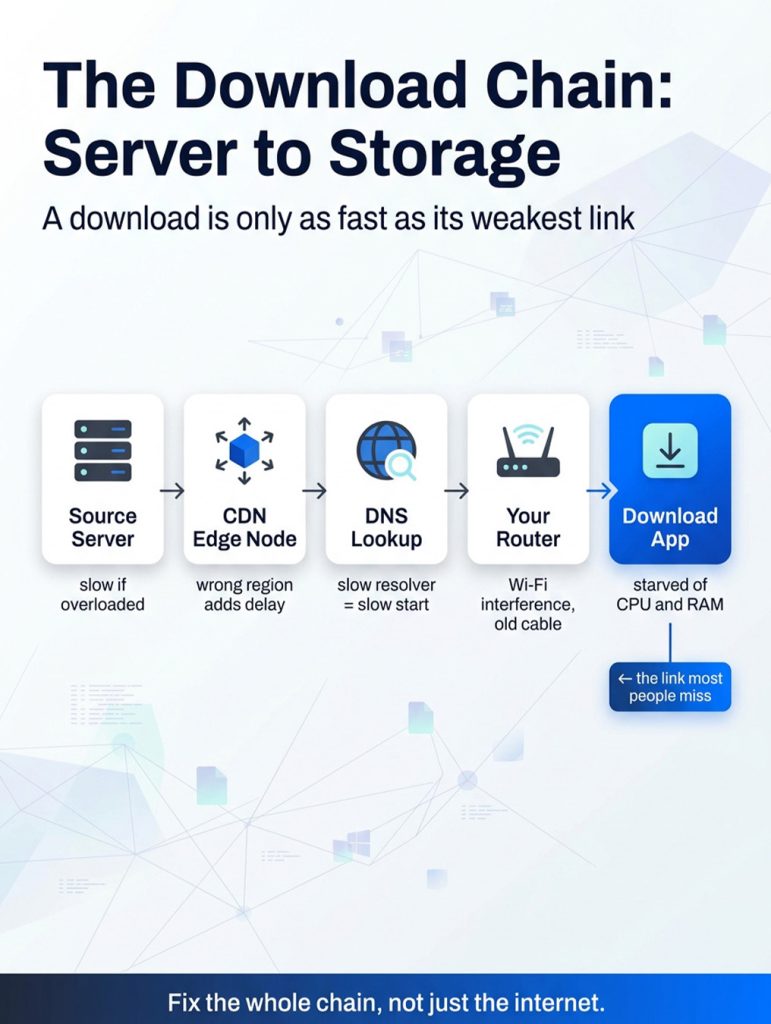
Before you learn how to speed up downloads on PC, it helps to understand what actually controls transfer speed. A download is only as fast as the weakest link in a chain that runs from the source server to your storage drive.
The Download Chain from Server to Storage
Once the data is off a remote server, it will make its way to an edge node on the content delivery network (CDN), then your router, before the program gets around to writing the file to disk. The entire process can be bottlenecked by any number of things: a sluggish DNS lookup, a clogged route on the CDN, or even an old cable. You have to factor in latency and packet loss as well; if some segments are lost they must be resent, and the download is put on hold until they are.
When Your PC Becomes the Bottleneck
You can have a robust link, but it will stall if the other side is not able to keep up. A download is just a process after all, one that has to call on the CPU and memory to verify, unpack, and put the data down. Let a few dozen background jobs clog up the scheduler and you start running short on free RAM, and that process will be starved of resources, taking your throughput with it. Hence, the aim is to do two things at once: open the network and give your system some breathing room.
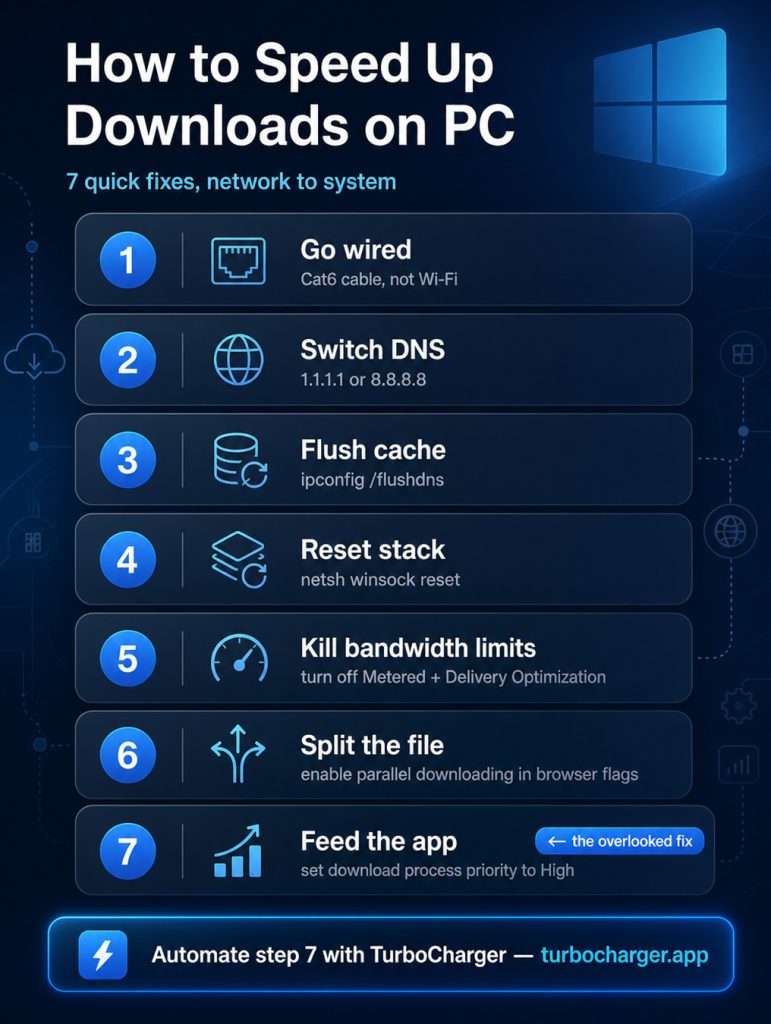
How to Speed Up Downloads on PC: The Hidden Tricks Most People Miss
The tricks below move from the network side to the system side. Run a baseline speed test first, then re-test after each change so you can see exactly what helped.
- Switch From Wi-Fi to a Wired Connection
Wi-Fi is a shared medium, so performance worsens with more devices, walls, distance, and interference. Go with a wired connection and you don’t have to worry about that kind of inconsistency. I would recommend a Cat6 or Cat6a cable, which is good for Gigabit speeds. Leave the old Cat5 behind, as it tops out around 100 Mbps, and a frayed wire is just asking for packet loss. When you are moving big files around, making the switch is usually where you will see the most improvement.
- Change Your DNS and Flush the Cache
If you are finding your provider’s default resolver to be on the slow side, it could be because it is sending you off to some far-flung CDN node. An easy way to put some speed back in your PC downloads is to change your adapter properties and go with a public one like Google (8.8.8.8) or Cloudflare (1.1.1.1). Thereafter, open an elevated command prompt and type in ipconfig /flushdns to get rid of any old records. It is about as simple a fix as you will find for improving download speeds.
- Reset the Windows Network Stack
You won’t see it, but a bad socket or TCP autotuning that has been turned off will slow down your throughput. To fix it, fire up an admin command prompt and enter “netsh winsock reset” followed by “netsh int ip reset.”
Make sure autotuning is in effect by typing in “netsh int tcp set global autotuninglevel=normal.” This gives Windows the ability to adjust the TCP receive window when you are on a high-speed link. A reboot is to put the changes into place.
- Remove Metered Connections and Delivery Optimization Limits
You never know when Windows will limit your bandwidth, so it is best to take control. Head over to the Network and Internet section of Settings and switch off the metered connection for your adapter. Then in Windows Update, under Advanced options and Delivery Optimization, you can do away with any download throttle and turn off peer-to-peer sharing, which has a way of clogging up your line.
- Enable Parallel Downloading in Your Browser
Normally your browser will open one stream for each file. If you want to change that, put “chrome://flags/#enable-parallel-downloading” (or “edge://flags”) in the address bar and turn on the flag. What it does is break the file up into pieces and download them in parallel over different connections before reassembling them; a good way to get more speed out of a big file.
- Close Resource-Heavy Apps and Update Drivers
You need to pause things like auto-updaters, streaming tabs, and game launchers while you are downloading; they will compete with your cloud sync for CPU and bandwidth. After that, go into Device Manager, and under Network adapters, make sure your Wi-Fi or Ethernet driver is up-to-date. The latest drivers will do a better job of optimizing for speed and ironing out any bugs.
Want to speed up your PC with expensive upgrades? Read More.
The Overlooked Fix: Give Your Download App the Resources It Needs
Most guides will tell you how to get faster downloads on your PC but omit the one trick that really makes a difference. You have to consider that whatever is handling the file save, be it your browser or some game launcher or a download manager of its own, is another process vying for CPU and memory. Put too much pressure on it and it won’t be able to put the incoming data down in time. In that case, you have created a system bottleneck in addition to the existing internet bottleneck.
Prove It with Task Manager
- Go to Task Manager and over to the Details tab.
- Find your browser process, right-click on it, and from the Set priority option, make your selection for High.
- That will give the process more of the scheduler’s time in Windows, and you will see the transfer get going right away.
- If you like, you can also use set affinity to reserve certain CPU cores for it.
Why the Manual Method Falls Short
The catch is that priority resets to normal on every restart, and managing it by hand across many apps quickly gets tedious. A persistent, automated tool closes that gap and keeps your most important process fed.
How TurboCharger Helps You Speed Up Downloads on PC
With TurboCharger, you don’t have to manage the priority trick manually; the program does it for you and ensures it’s done right. You can put away the Task Manager from session to session because the software will have already assigned your preferred apps to a superior Windows priority, be that above normal or high. It even remembers the settings after a reboot, meaning your download manager or browser will always have the CPU and memory they need.
Automatic and Manual App Prioritization
The Turbo Charger App is built around smart, automatic prioritization, with full manual control on top. You can pin a download tool as a high-priority app, and the program enforces that policy in the background through a clean, beginner-friendly interface.
What It Does and Does Not Do
Let’s get one thing straight: TurboCharger is no bandwidth booster and won’t give you any more than your provider is already selling you. What it does is clear the system-side bottleneck, letting your connection’s full capacity be used in a transfer. It is a resource-first way of doing things that makes for better PC performance and quicker downloads, which is something many people are after.
But the utility doesn’t stop at downloads. You will find programmers, video editors, and gamers putting it to work to make sure their more taxing software stays responsive. In short, if you are looking to give your computer some extra speed all around, you end up with steadier, faster downloads as well. And since there is a 14-day free trial on offer, trying this method to speed up your PC has very little risk and plenty of upside.
Frequently Asked Questions
1. Why are my downloads slow even though my internet is fast?
Usually your PC, not the line. Background processes and low free RAM starve the download process of CPU, so how to speed up downloads on PC often means prioritizing that process.
2. Does prioritizing an app really speed up downloads?
Yes, it does, but only when the CPU is the limiting factor. A higher Windows priority class gives the process more scheduler time to unpack and write incoming data.
3. Will TurboCharger increase the speed I pay my provider for?
No. It reallocates local CPU and memory, not network bandwidth. It only clears system-side throttling that blocks the speed you already have.
4. Is changing DNS servers safe?
Yes. Cloudflare (1.1.1.1) and Google (8.8.8.8) are trusted and free. Run ipconfig /flushdns after switching to clear cached lookups.
5. Do I need to be tech-savvy to use TurboCharger?
No. Automatic prioritization handles the work, and manual control is a single click in a simple interface.
Final Thoughts
You will not find a single culprit when it comes to slow downloads on your PC, so the best way to put some speed back in them is with a layered approach. Start with the network fundamentals: put in an Ethernet cable, switch your DNS, and free up any bandwidth that other devices or apps are siphoning off in the background.
Then you have to turn your attention to the machine itself. A system under too much strain will stifle a transfer even if your connection is top-notch. Most folks miss this step, but it is where you can make the most headway. Give the download app priority so it doesn’t have to skimp on resources and can run at full tilt. If you want to handle that without much fuss, TurboCharger has a sensible, easy-to-use tool for it.
Put these tips to work and take the free trial for good measure, and you should be seeing your downloads come in on time.