
You don’t have to run out and buy new hardware every time your computer gets sluggish. Chances are, the problem is that your machine is dividing its resources too evenly, giving a background updater as much of an audience as the video call you are trying to have. There is a remedy for that in Windows already. With a little know-how on how to set priority in the task manager, you can put some muscle behind the programs that matter and let the rest wait their turn; you will find your go-to apps become a lot more responsive for it.
We will do more here than offer a quick tip. To start, we show how Windows decides what to run first and then give you the steps to overrule it. You’ll also get some technical context so you can make these adjustments a habit rather than just a vague fix. And since manual changes tend not to stick, we cover how to make them permanent.
How Windows Decides Which App Runs First
You should have some idea of what is going on before you make changes. A processor has limits on how many instructions it can execute at any given moment, but an ordinary Windows PC will be running dozens, if not hundreds, of processes at the same time. Windows maintains order with the aid of something called the scheduler, which is very much a matter of priority for it.
The Six Priority Classes
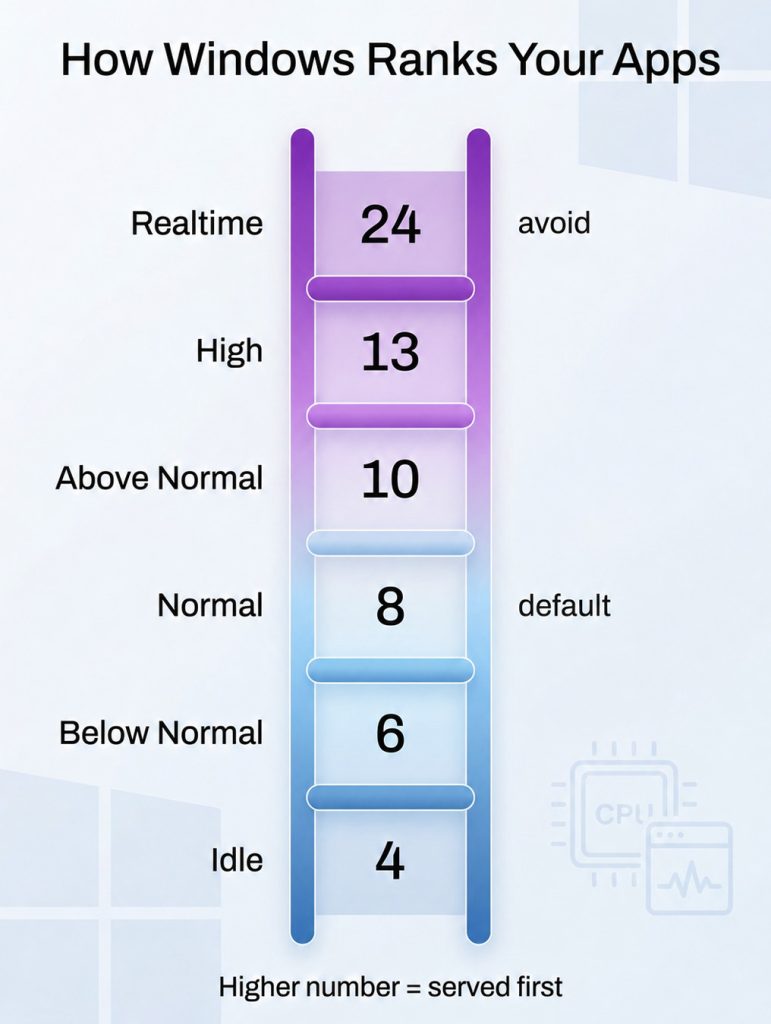
Windows sorts every process into one of six priority classes. From lowest to highest, the priority classes are Idle, Below Normal, Normal, Above Normal, High, and Realtime. Each class maps to a numeric base priority on a scale that runs from 0 to 31, where higher numbers win more often. The table below shows the base value tied to each class:
| Priority class | Base priority value |
| Idle (Low) | 4 |
| Below Normal | 6 |
| Normal | 8 |
| Above Normal | 10 |
| High | 13 |
| Realtime | 24 |
Most apps launch at Normal, which sits right in the middle at 8. When you bump a program to high, you move it from 8 to 13, a meaningful jump that tells the scheduler to serve that program before almost anything else.
How the Scheduler Shares CPU Time
Windows employs a scheduler that is round-robin as well as pre-emptive. The pre-emptive side will stop a lower-priority thread as soon as a more important one is ready, allowing it to continue its work. Then there is the round-robin element: if you have several threads at the same level of priority, they are given an equal and brief time slice, or quantum, in rotation.
You can see where this approach leads. If you bump up an application’s priority, you are not conjuring up any new processing power. What you are doing is simply taking the resources at hand and putting your program at the head of the queue so it has less to wait and more to run.
The Hidden Foreground Boost
Windows also does some of this work quietly on its own. Whenever a window moves to the foreground, the scheduler temporarily lifts that process above the background tasks, then lowers it again once you click away. So, your active window already has a slight advantage. Manual prioritization simply gives you firmer, more lasting control than that automatic nudge provides.
What Task Manager Set Priority Actually Does
With that background in place, the feature itself is straightforward to grasp. The Task Manager’s set priority option lets you override the default class for any running program. Rather than leaving every app at Normal and letting them compete as equals, you decide which ones get preferential treatment.
There is one important nuance worth knowing. Windows often boosts a thread’s priority in real time when something important happens, such as keyboard or mouse input arriving. The single exception is Realtime: processes in that class never receive these dynamic boosts because they already outrank almost everything. That detail is relevant for the warning you will read shortly.
How to Set App Priority in Task Manager, Step by Step
Changing an app priority takes less than a minute once you know where to look.
Raising a Program’s Priority
- Right-click the taskbar and select Task Manager or press Ctrl + Shift + Esc.
- Click the Details tab, which lists every running process by its file name.
- Locate the program you want to speed up, then right-click it.
- Hover over Set priority, then choose High or Above Normal.
- When Windows prompts you, please confirm the change; it will take effect immediately.
That is the entire task manager set priority routine for promoting an app. You should see the difference fastest when your system is already under load.
Lowering Background Hogs
Promotion is only half the toolkit. To rein in a resource-hungry background task, repeat the same steps but choose Below Normal or Low. Demoting a busy updater or sync tool frees the freed-up cycles for the work in front of you, and many people find this just as effective as raising their main app.
A Quick Word on Realtime
Avoid the Realtime class for ordinary programs. Microsoft itself warns that Realtime can interrupt the system threads that handle mouse input, keyboard input, and background disk writes. Because a real-time app outranks even core operating-system tasks, a single misbehaving program can make your whole PC freeze or feel unresponsive. High or Above Normal delivers nearly all the benefit with none of the danger.
Why Manual Priority Changes Rarely Stick
Manual prioritization works, yet it comes with two frustrations that wear thin quickly.
The Restart Reset Problem
The moment you close a program or reboot your PC, Windows forgets your choice and resets that app back to normal. There is no built-in setting to make a change permanent. Consequently, you end up repeating the same task manager set priority steps repeatedly every single session.
The Risk of Over-Prioritizing
There is also a skill curve. Raise too many apps at once, and they simply compete again at the new level, which cancels out the benefit. Forgetting to demote a finished task keeps eating cycles in the background. In short, doing this by hand demands constant attention and a steady understanding of what each process does.
A Smarter Way: Automatic Smart App Control
This is exactly where dedicated speed-up computer software earns its place. Instead of micromanaging processes yourself, you can let a tool apply the right priorities automatically and keep them in place. TurboCharger was built for precisely this job.
How TurboCharger Automates Priority
The TurboCharger App watches how you use your PC and steers resources toward the programs that matter most, whether that is a game, an editing suite, or a code compiler. Its smart app control feature means your key apps stay favored even after a restart, which directly solves the reset problem described above. Think of it as a priority pass app for your most important programs, ushering them to the front of the line every time.
Manual Control When You Want It
Automation does not mean losing the wheel. You can still assign priorities by hand whenever you want full control, and with TurboCharger those settings actually hold instead of vanishing on reboot. The interface stays simple too, so you never have to memorize process names or dig through tabs. You build your ideal setup once, and the software maintains it in the background week after week.
Manual Task Manager Tweaks vs. Dedicated Software
Both approaches have a place, so it is worth knowing when each one fits.
When Manual Is Enough
The built-in Windows tool is genuinely useful, and it costs nothing. For a quick, one-time fix, opening Task Manager and adjusting a single program works perfectly well. Therefore, it remains a smart first step and a concept every PC owner should understand.
When Automation Wins
You will find that the manual way has its limits as your requirements expand. When you are after priorities that hold up through a restart, make their own adjustments when you change tasks, and don’t give you pause for thought, there is no contest: automation is the way to go. You can pick up the theory of the task manager set priority trick, but with a program such as TurboCharger, it becomes a matter of setting it and forgetting it. There’s no cost to test the free trial, and most agree the small annual fee is worth it for the time you get back in your day.
Frequently Asked Questions
- Does setting a higher priority really make my computer faster?
Yes, in a targeted way. Raising a program’s priority does not add new power to your PC; it redirects existing power toward that program. Because Windows runs a pre-emptive scheduler, the app you boosted jumps ahead of lower-priority work and runs more smoothly, especially under heavy load.
- Is it safe to use the realtime priority level?
It is best avoided for normal apps. At a base value of 24, Realtime can crowd out the core system threads that handle input and disk writes, which may freeze your machine. Stick with high or above normal for safe, reliable gains.
- Why does my priority setting disappear after I restart?
Windows resets process priorities to normal every time a program relaunches or the PC reboots. This is expected behavior, not a bug. To keep your settings permanent, you need a tool such as TurboCharger that reapplies them automatically.
- Can I lower an app’s priority instead of raising one?
Absolutely. Dropping a background app to below normal or low frees up cycles for the work in front of you. Many people find that demoting resource hogs helps just as much as promoting their main app.
- Do I need technical skills to manage app priorities?
Not at all. The manual steps take only a few clicks, and the task manager’s set priority process is straightforward once you try it. For an even simpler experience, TurboCharger handles the whole job through a friendly, beginner-ready interface.
Final Thoughts
Speeding up a slow PC does not always require a costly upgrade. Often, it is a matter of poor resource allocation, and you can put that right today. If you take the time to understand priority classes and apply them in Task Manager, you gain some hands-on control; it is a useful trick for any PC owner to know. But then you find that every restart undoes such manual adjustments, and they soon become a chore.
This is where automation comes into its own. A reliable tool will manage your app priorities and keep them in place, giving you a faster machine and no fuss. For a speed boost that endures and takes little effort on your part, we recommend TurboCharger. It is a tried-and-true solution with thousands of users.